
목차
1. OpenLDAP 인증
1.1 개 요
1.2 OpenLDAP의 주요 특징
1.3 주요 구성 요소
1.4 활용 사례
1.5 데이터 식별 예시
2. OpenLDAP 설치 및 설정
2.1 OpenLDAP 설치
2.2 OpenLDAP 설정
3. BaroPAM 설치 및 설정
3.1 BaroPAM 설치 전 준비사항
3.2 BaroPAM 설치 모듈 다운로드
3.3 BaroPAM 환경 설정 파일 생성
3.4 BaroPAM 환경 설정
4. OpenLDAP 연동 테스트
4.1 환경 설정
4.2 사용자 계정 생성
4.3 연동 테스트
5. About BaroPAM
1.OpenLDAP 인증
1.1 개 요
OpenLDAP는 LDAP(Lightweight Directory Access Protocol) 프로토콜을 구현한 대표적인 오픈 소스 디렉터리 서비스 소프트웨어다.
일반적인 관계형 데이터베이스(MySQL, Oracle 등)가 복잡한 관계와 빈번한 데이터 수정에 최적화되어 있다면, OpenLDAP과 같은 디렉터리 서비스는 "자주 조회(Read)되지만 거의 바뀌지 않는 정보"를 계층적으로 관리하는 데 특화되어 있다.
LDAP은 플랫폼 독립 프로토콜이다. 여러 공통 리눅스 배포판에는 LDAP 지원을 위한 OpenLDAP 소프트웨어를 포함하고 있다. 이 소프트웨어는 BSD 변형, AIX, 안드로이드, HP-UX, macOS, 솔라리스, 마이크로소프트 윈도우(NT 및 파생, 예: 2000, XP, 비스타, 윈도우 7 등), Z/OS에서도 구동된다.

1.2 OpenLDAP의 주요 특징
1) 계층 구조 (Tree Structure)
데이터를 트리 형태로 저장하여 조직도(본사 > 부서 > 팀 > 개인)를 그대로 반영할 수 있다.
2) 고성능 검색
수만 명의 사용자 데이터 중 특정 사용자의 권한을 확인하는 것과 같은 검색 작업이 매우 빠르다.
3) 표준 프로토콜
특정 기업에 종속되지 않은 표준 LDAP 프로토콜을 따르므로, Linux, Windows, 다양한 네트워크 장비 및 클라우드 솔루션과 호환성이 뛰어나다.
4) 유연한 인증 체계
단순 패스워드 인증부터 SASL, TLS/SSL을 이용한 암호화 인증까지 폭넓게 지원한다.
1.3 주요 구성 요소
1) slapd (Standalone LDAP Daemon)
클라이언트의 요청을 받아 데이터를 처리하는 핵심 서버 프로그램이다.
2) LDIF (LDAP Data Interchange Format)
데이터를 텍스트 형태로 표기하는 표준 방식으로, 데이터 백업이나 일괄 등록 시 사용된다.
3) Schema (스키마)
디렉터리에 저장될 데이터의 형식(예: 이름은 문자열, 전화번호는 숫자 등)을 규정하는 규칙 집합이다.
1.4 활용 사례
1) 통합 ID 관리 (Single Sign-On, SSO)
사내의 모든 서버(Linux SSH), VPN, 사내 게시판, 이메일 시스템의 계정을 OpenLDAP 하나로 통합하여 관리합니다. 사용자는 아이디 하나로 모든 시스템에 로그인할 수 있다.
2) 권한 제어
특정 그룹에 속한 사용자만 특정 서버에 접속하거나 특정 폴더에 접근할 수 있도록 제어한다.
3) 주소록 서버
기업 내 임직원의 연락처, 이메일 정보를 중앙에서 관리하고 공유한다.
1.5 데이터 식별 예시
OpenLDAP 내의 데이터는 DN(Distinguished Name)이라는 고유 주소를 가진다.
| uid=kim, ou=dev, dc=company, dc=com |
dc (Domain Component): 도메인 정보 (company.com)
ou (Organizational Unit): 조직 단위 (개발팀)
uid (User ID): 사용자 아이디 (kim)
OpenLDAP은 특히 리눅스 서버 환경의 보안 강화와 사용자 관리를 위해 필수적인 인프라 솔루션으로 꼽힌다.
2. OpenLDAP 설치 및 설정
2.1 OpenLDAP 설치
기본 레파지토리에는 openldap-servers가 존재하지 않으므로 레피지토리에 추가한다.
| [root@baropam ~]# dnf config-manager --set-enabled plus [root@baropam ~]# dnf repolist 저장소 ID 저장소 이름 appstream Rocky Linux 9 - AppStream baseos Rocky Linux 9 - BaseOS extras Rocky Linux 9 - Extras plus Rocky Linux 9 - Plus |
가장 먼저 OpenLDAP와 SASL 관련 패키지를 설치한다.
| [root@baropam ~]# dnf -y install openldap-servers openldap-clients cyrus-sasl cyrus-sasl-plain |
설치된 OpenLDAP를 제거 할려고 할 때 è dnf -y erase openldap-servers openldap-clients cyrus-sasl cyrus-sasl-plain
2.2 OpenLDAP 설정
1) OpenLDAP 실행 및 초기화
자동 시작을 위한 OpenLDAP 서비스(slapd)를 생성 및 실행한다.
| [root@baropam ~]# systemctl enable --now slapd Created symlink /etc/systemd/system/slapd.service → /usr/lib/systemd/system/slapd.service. Created symlink /etc/systemd/system/multi-user.target.wants/slapd.service → /usr/lib/systemd/system/slapd.service. [root@baropam ~]# systemctl start slapd |
OpenLDAP(slapd) 데몬에 문제가 생겼을 때 자동으로 재시작하도록 설정하려면, 리눅스의 서비스 관리 도구인 systemd의 기능을 활용하는 것이 가장 표준적이고 강력한 방법이다.
OpenLDAP 자체에는 프로세스 다운 시 자가 재시작 옵션이 따로 없으므로, 시스템 차원에서 감시하고 복구하도록 설정해야 한다.
가장 권장되는 방법은 서비스 유닛 파일에 Restart 옵션을 추가하는 것이다.
| [root@baropam ~]# vi /usr/lib/systemd/system/slapd.service [Unit] Description=OpenLDAP Server Daemon After=syslog.target network-online.target Documentation=man:slapd Documentation=man:slapd-config Documentation=man:slapd-mdb Documentation=file:///usr/share/doc/openldap-servers/guide.html [Service] Type=forking ExecStartPre=/usr/libexec/openldap/check-config.sh ExecStart=/usr/sbin/slapd -u ldap -h "ldap:/// ldaps:/// ldapi:///" Restart=on-failure RestartSec=5s StartLimitIntervalSec=600 StartLimitBurst=5 [Install] WantedBy=multi-user.target Alias=openldap.service |
설정한 Restart 옵션 종류와 트리거 조건는 다음과 같다.
| 옵션 | 설명 |
| no | 기본값, 서비스를 자동으로 재시작하지 않음. |
| always | 종료 상태(정상/비정상)나 신호(Signal)에 관계없이 무조건 재시작. |
| on-success | 서비스가 클린하게 종료되었을 때만 재시작. (Exit code 0) |
| on-failure | 권장, 비정상 종료 시에만 재시작. (0이 아닌 Exit code, 프로세스 킬, 타임아웃 등) |
| on-abnormal | 프로세스가 비정상적으로 종료되었을 때만 재시작. (시그널에 의한 종료, 타임아웃 등) |
| on-abort | 프로세스가 포착되지 않은 시그널에 의해 종료되었을 때만 재시작. |
Restart와 함께 사용하는 중요 보조 옵션은 Restart 옵션만 단독으로 쓰기보다는, 무한 루프 방지와 안정성을 위해 아래 옵션들을 함께 설정하는 것이 일반적이다.
| 옵션 | 설명 |
| RestartSec | 재시작을 시도하기 전 대기 시간. (예: 5s) 너무 짧게 설정하면 시스템 부하가 커질 수 있다. |
| StartLimitIntervalSec | 실패 횟수를 계산할 시간 범위. (예: 600초) |
| StartLimitBurst | 설정한 시간 범위 내에서 허용할 최대 재시작 횟수. (예: 5회) |
참고: 600초 동안 5번 이상 재시작에 실패하면, systemd는 해당 서비스에 문제가 심각하다고 판단하여 더 이상 재시작을 시도하지 않고 중지(Failed) 상태로 둔다.
변경 사항 적용)
| [root@baropam ~]# systemctl daemon-reload [root@baropam ~]# systemctl restart slapd.service |
참고)
$ systemctl start slapd ->서비스 시작
$ systemctl stop slapd ->서비스 종료
$ systemctl restart slapd ->서비스 재시작
$ systemctl status slapd ->서비스 상태
2) 방화벽 허용
OpenLDAP 패킷을 허용하도록 Firewalld를 구성해야 한다.
| [root@baropam ~]# firewall-cmd --permanent --add-service={ldap,ldaps} success |
변경 사항을 적용하려면 방화벽을 다시 로드하기 위하여 해야 다음 명령을 실행한다.
| [root@baropam ~]# firewall-cmd --reload success |
3) 관리자 비밀번호 설정
Base Dn : cn=admin,dc=example,dc=com, 관리자 비밀번호를 사용하여 관리 가능하다.
비밀번호 생성)
| [root@baropam ~]# slappasswd New password: baropam Re-enter new password: baropam {SSHA}052QoM5oM14WYbi3WkzcMPLQ27fFsxFt ß복사 필요 |
비밀번호 DN 생성)
| [root@baropam ~]# vi admin_pass.ldif dn: olcDatabase={2}mdb,cn=config changetype: modify replace: olcRootPW olcRootPW: {SSHA}052QoM5oM14WYbi3WkzcMPLQ27fFsxFt ß복사한 비밀번호 붙여넣기 |
비밀번호 DN 적용)
| [root@baropam ~]# ldapadd -Y EXTERNAL -H ldapi:/// -f admin_pass.ldif SASL/EXTERNAL authentication started SASL username: gidNumber=0+uidNumber=0,cn=peercred,cn=external,cn=auth SASL SSF: 0 modifying entry "olcDatabase={2}mdb,cn=config" |
4) 기본 DN을 설정
기본 DN 생성)
| [root@baropam ~]# vi base_structure.ldif # base_structure.ldif dn: olcDatabase={2}mdb,cn=config changetype: modify replace: olcSuffix olcSuffix: dc=example,dc=com dn: olcDatabase={2}mdb,cn=config changetype: modify replace: olcRootDN olcRootDN: cn=admin,dc=example,dc=com |
기본 DN 적용)
| [root@baropam ~]# ldapadd -Y EXTERNAL -H ldapi:/// -f base_structure.ldif SASL/EXTERNAL authentication started SASL username: gidNumber=0+uidNumber=0,cn=peercred,cn=external,cn=auth SASL SSF: 0 modifying entry "olcDatabase={2}mdb,cn=config" modifying entry "olcDatabase={2}mdb,cn=config" |
5) 기본 스키마 로드
| [root@baropam ~]# ldapadd -Y EXTERNAL -H ldapi:/// -f /etc/openldap/schema/cosine.ldif SASL/EXTERNAL authentication started SASL username: gidNumber=0+uidNumber=0,cn=peercred,cn=external,cn=auth SASL SSF: 0 adding new entry "cn=cosine,cn=schema,cn=config" [root@baropam ~]# ldapadd -Y EXTERNAL -H ldapi:/// -f /etc/openldap/schema/nis.ldif SASL/EXTERNAL authentication started SASL username: gidNumber=0+uidNumber=0,cn=peercred,cn=external,cn=auth SASL SSF: 0 adding new entry "cn=nis,cn=schema,cn=config" [root@baropam ~]# ldapadd -Y EXTERNAL -H ldapi:/// -f /etc/openldap/schema/inetorgperson.ldif SASL/EXTERNAL authentication started SASL username: gidNumber=0+uidNumber=0,cn=peercred,cn=external,cn=auth SASL SSF: 0 adding new entry "cn=inetorgperson,cn=schema,cn=config" |
6) 기본 조직 설정
기본 조직 DN 생성)
| [root@baropam ~]# vi initial_org.ldif # 조직의 루트 DIT(Directory Information Tree) 항목 정의 # dc=example,dc=com은 설치 시 설정한 기본 도메인에 맞춰 변경해야 합니다. dn: dc=example,dc=com objectClass: top objectClass: dcObject objectClass: organization o: My Company description: My Company's main LDAP directory # 사용자들을 위한 조직 구성 단위(OU) 정의 dn: ou=users,dc=example,dc=com objectClass: top objectClass: organizationalUnit ou: users description: All user accounts in My Company # 그룹들을 위한 조직 구성 단위(OU) 정의 dn: ou=groups,dc=example,dc=com objectClass: top objectClass: organizationalUnit ou: groups description: All user groups in My Company # 부서들을 위한 조직 구성 단위(OU) 정의 dn: ou=departments,dc=example,dc=com objectClass: top objectClass: organizationalUnit ou: departments description: Departments within My Company # IT 부서 OU 정의 (부서 OU 아래에 위치) dn: ou=IT,ou=departments,dc=example,dc=com objectClass: top objectClass: organizationalUnit ou: IT description: Information Technology Department # HR 부서 OU 정의 (부서 OU 아래에 위치) dn: ou=HR,ou=departments,dc=example,dc=com objectClass: top objectClass: organizationalUnit ou: HR description: Human Resources Department |
기본 조직 DN 적용)
| [root@baropam ~]# ldapadd -x -W -D "cn=admin,dc=example,dc=com" -f initial_org.ldif Enter LDAP Password: baropam adding new entry "dc=example,dc=com" adding new entry "ou=users,dc=example,dc=com" adding new entry "ou=groups,dc=example,dc=com" adding new entry "ou=departments,dc=example,dc=com" adding new entry "ou=IT,ou=departments,dc=example,dc=com" adding new entry "ou=HR,ou=departments,dc=example,dc=com" |
7) 테스트
baropam 사용자 DN 생성)
| [root@baropam ~]# vi add_nurit.ldif dn: uid=honggildong,ou=HR,ou=departments,dc=example,dc=com objectClass: top objectClass: person objectClass: organizationalPerson objectClass: inetOrgPerson cn: nurit sn: nuri givenName: it mail: nurit@example.com uid: nurit userPassword: {SSHA}052QoM5oM14WYbi3WkzcMPLQ27fFsxFt |
baropam 사용자 DN 적용)
| [root@baropam ~]# ldapadd -x -D "cn=admin,dc=example,dc=com" -W -f add_nurit.ldif Enter LDAP Password: baropam adding new entry "uid=honggildong,ou=HR,ou=departments,dc=example,dc=com" |
HR부서에 속한 인원을 조회)
| [root@baropam ~]# ldapsearch -x -b "ou=HR,ou=departments,dc=example,dc=com" "(objectClass=person)" cn # extended LDIF # # LDAPv3 # base <ou=HR,ou=departments,dc=example,dc=com> with scope subtree # filter: (objectClass=person) # requesting: cn # # honggildong, HR, departments, example.com dn: uid=honggildong,ou=HR,ou=departments,dc=example,dc=com cn: nurit # search result search: 2 result: 0 Success # numResponses: 2 # numEntries: 1 |
3. BaroPAM 설치 및 설정
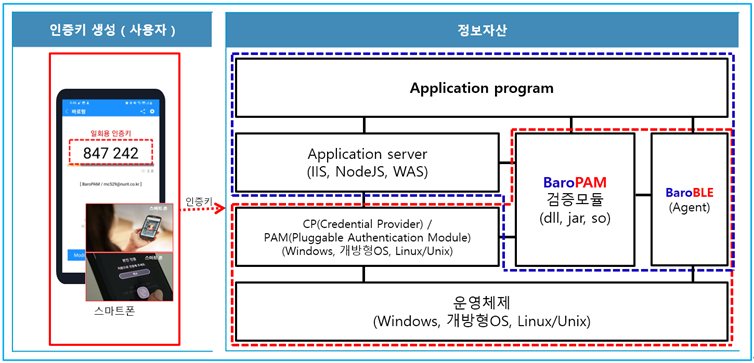
BaroPAM솔루션은 제로 트러스트(Zero Trust) 보안 모델로 정보자산의 보안 강화를 위하여 2차 인증(추가 인증)이 필요한 다양한 운영체제와 애플리케이션에 누구나 손쉽게 곧바로 적용할 수 있는 플러그인 가능한 인증 모듈(PAM, Pluggable Authentication Module) 방식을 기반으로 하는 보안에 최적화된 생체인식이 적용된 3단계 인증 솔루션이다.
3.1 BaroPAM 설치 전 준비사항
PAM 모듈을 사용하기 위해서는 기본적으로 PAM 패키지가 반드시 설치되어 있어야 한다. 설치 확인은 다음의 명령어를 실행하여 확인한다. 만약, 설치되어 있지 않으면 Redhat 계열은 "dnf -y install *pam*" 그외는 "sudo apt-get install pam" 명령어로 설치하면 된다.
| [root]# rpm -qa | grep pam pam_smb-1.1.7-7.2.1 pam_passwdqc-1.0.2-1.2.2 pam-0.99.6.2-14.el5_11 pam_krb5-2.2.14-22.el5 pam-devel-0.99.6.2-14.el5_11 pam_ccreds-3-5 pam_smb-1.1.7-7.2.1 pam_pkcs11-0.5.3-26.el5 pam-devel-0.99.6.2-14.el5_11 pam_passwdqc-1.0.2-1.2.2 pam-0.99.6.2-14.el5_11 pam_ccreds-3-5 pam_krb5-2.2.14-22.el5 pam_pkcs11-0.5.3-26.el5 |
BaroPAM 인증 모듈을 다운로드 및 설치하기 위해서 root 계정으로 접속한 후 모듈을 다운로드 및 설치하기 위한 디렉토리(/usr/baropam)를 다음과 같이 생성한다.
| [root]# mkdir /usr/baropam |
BaroPAM 모듈을 다운로드 및 설치하기 위한 디렉토리의 권한(읽기, 쓰기, 실행)을 다음과 같이 부여한다.
| [root]# chmod 777 /usr/baropam |
3.2 BaroPAM 설치 모듈 다운로드
BaroPAM 인증 모듈은 root 계정으로 접속한 후 모듈을 다운로드 및 설치하기 위한 디렉토리(/usr/baropam)로 이동하여 모듈을 다운로드 하는 방법은 다음과 같다.
| [root] /usr/baropam > wget http://nuriapp.com/download/libpam_baro_auth-x.x.tar |
BaroPAM 인증 모듈의 다운로드가 완료되면 tar 파일의 압축을 해제하는 방법은 다음과 같다.
| [root] /usr/baropam > tar -xvf libpam_baro_auth-x.x.tar |
BaroPAM 인증 모듈의 압축을 해제하면 baropam 디렉토리에 다음과 같은 BaroPAM 관련 모듈이 생성된다.
| [root] /usr/baropam > ls -al 합계 180 drwxrwxrwx 7 root root 4096 8월 23 09:59 . drwxr-xr-x 17 root root 4096 2월 10 2017 .. -r--r--r-- 1 root root 8 3월 24 2021 .baro_acl -r--r--r-- 1 root root 305 7월 2 14:41 .baro_auth -r--r--r-- 1 root root 290 6월 30 12:55 .baro_curl -r--r--r-- 1 root root 287 2월 28 12:19 .baro_sql -rwxr-xr-x 1 root root 69149 4월 6 19:12 baro_auth -rwxr-xr-x 1 root root 65072 6월 29 16:36 baro_curl -rwxr-xr-x 1 root root 57074 2월 28 12:18 baro_sql drwxr-xr-x 2 root root 4096 7월 20 2021 jilee -rwxr-xr-x 1 root root 152649 6월 9 08:19 pam_baro_auth.so -rwxr-xr-x 1 root root 116158 6월 30 12:54 pam_baro_curl.so -rwxr-xr-x 1 root root 170863 2월 28 12:18 pam_baro_sql.so -rw-r--r-- 1 root root 221 6월 27 15:59 setauth.sh -rw-r--r-- 1 root root 150 6월 29 16:29 setcurl.sh -rw-r--r-- 1 root root 180 2월 28 12:19 setsql.sh |
3.3 BaroPAM 환경 설정 파일 생성
1) PAM 인증(.baro_auth): 환경 설정 정보를 File에 설정
BaroPAM 환경 설정 파일은 baro_auth 프로그램을 실행하여 반드시 생성하는데, BaroPAM 인증 모듈의 디렉토리인 /usr/baropam 밑에 위치 하도록 한다.
형식)
| baro_auth -r rate_limit -R rate_time -t cycle_time –k key_method –e encrypt_flag -A acl_type -a acl_filename -S secure_key -s filename |
BaroPAM 환경설정 파일의 설정 옵션에 대한 내용은 다음과 같다.
| 옵션 | 설명 | 설정값 | 비고 |
| -r | 일회용 인증키의 제한횟수(1~10) | 3 | |
| -R | 일회용 인증키의 제한시간(초, 15~600초) | 30 | |
| -t | 일회용 인증키의 인증주기(초, 3~60초) | 30 | |
| -k | 일회용 인증키의 인증방식(app1, app256, app384, app512). | app512 | |
| -e | 환경설정 파일의 암호화 여부(yes or no) | no | |
| -A | 2차 인증에서 허용(allow) 또는 제외(deny)할지 선택 | deny | |
| -a | 2차 인증에서 허용(allow) 또는 제외(deny)할 계정에 대한 ACL 파일명(파일 접근권한은 444) | /usr/baropam/.baro_acl | |
| -S | 반드시 벤더에서 제공하는 Secure key(라이선스 키) | jIqIcHbVqdpj7b4PzBpM2DiIeBvmHFV/ | |
| -s | BaroPAM 환경설정 파일을 생성할 디렉토리를 포함한 파일명 | /usr/baropam/.baro_auth |
주의) –s 옵션의 filename는 BaroPAM 환경설정 파일을 생성할 디렉토리를 포함한 파일명(파일 접근권한은 444)이다.
사용 예)
| [root] /usr/baropam > ./baro_auth -r 3 -R 30 -t 30 –k app512 –e no -A deny -a /usr/baropam/.baro_acl -S jIqIcHbVqdpj7b4PzBpM2DiIeBvmHFV/ -s /usr/baropam/.baro_auth |
만약, 계정마다 BaroPAM 환경 설정파일을 각각 설정하는 경우 해당 계정으로 접속하여 작업을 진행한다. (Not root)
| [root] /usr/baropam > ./baro_auth -r 3 -R 30 -t 30 –k app512 –e no -A deny -a ~/.baro_acl -S jIqIcHbVqdpj7b4PzBpM2DiIeBvmHFV/ -s ~/.baro_auth |
1) Your emergency one-time authentication keys are :
응급 일회용 인증키는 일회용 인증키 생성기인 BaroPAM 앱을 사용할 수 없을 때 분실한 경우를 대비하여 SSH 서버에 다시 액세스하는데 사용할 수 있는 접속이 가능한 Super 인증키 이므로 어딘가에 적어 두는 것이 좋다.
2) 다음에 나오는 물음에 대해서는 모두 "y"를 입력한다.
"/usr/baropam/.baro_auth" 파일을 업데이트하시겠습니까 (y/n) y
중간자(man-in-the-middle) 공격을 예방할 것인가 (y/n) y
BaroPAM 환경 설정 파일인 .baro_auth에 설정한 내용은 다음과 같다.
| [root] /usr/baropam > cat .baro_auth " AUTH_KEY " RATE_LIMIT 3 30 " KEY_METHOD app512 " CYCLE_TIME 30 " SECURE_KEY jIqIcHbVqdpj7b4PzBpM2DiIeBvmHFV/ " ACL_NAME /usr/baropam/.baro_acl " ACL_TYPE deny " DISALLOW_REUSE 33458936 19035576 15364353 54649370 84342192 |
BaroPAM 환경설정 파일인 .baro_auth의 설정 항목에 대한 내용은 다음과 같다.
| 항목 | 설명 | 설정값 | 비고 |
| AUTH_KEY | 인증 구분자(고정) | ||
| RATE_LIMIT | 일회용 인증키의 제한횟수(1~10), 제한시간(초, 15~600초) | 3 30 | |
| KEY_METHOD | 일회용 인증키의 인증방식(app1, app256, app384, app512) | app512 | |
| CYCLE_TIME | 일회용 인증키의 인증주기(초, 3~60초) | 30 | |
| SECURE_KEY | 반드시 벤더에서 제공하는 Secure key(라이선스 키) | jIqIcHbVqdpj7b4PzBpM2DiIeBvmHFV/ | |
| ACL_TYPE | 2차 인증에서 허용(allow) 또는 제외(deny) 구분 | deny | |
| ACL_NAME | 2차 인증에서 허용 또는 제외할 계정에 대한 ACL Filename(파일 접근권한은 444) | /usr/baropam/.baro_acl | |
| DISALLOW_REUSE or ALLOW_REUSE |
중간자(man-in-the-middle) 공격을 예방할 경우는 "DISALLOW_REUSE"을 설정한 경우 일회용 인증키의 인증주기 동안은 다른 사용자가 로그인 할 수 없으며, 만약 허용할 경우는 "ALLOW_REUSE"을 설정한다. | DISALLOW_REUSE |
2) PAM 인증(.baro_sql): 환경 설정 정보를 MariaDB에 설정
BaroPAM 환경 설정 정보가 존재하는 Mariadb와 연동하기 위한 접속 정보는 baro_sql 프로그램을 실행하여 반드시 생성하는데, BaroPAM 인증 모듈의 디렉토리인 /usr/baropam 밑에 위치하도록 한다.
형식)
| baro_sql -H hostname –u username –p password –d dbname –P portno -r rate_limit -R rate_time -t cycle_time -k key_method -e encrypt_flag -A acl_type -a acl_filename -S secure_key -s filename |
BaroPAM 환경설정 파일의 설정 옵션에 대한 내용은 다음과 같다.
| 옵션 | 설명 | 설정값 | 비고 |
| -H | MariaDB 서버의 호스트 이름 또는 IP 주소 | nurit.co.kr | |
| -u | MariaDB 사용자 이름 | nurit | |
| -p | MariaDB 사용자의 비밀번호 | baropam | |
| -d | 연결할 MariaDB 이름 | baropamdb | |
| -P | MariaDB 서버의 포트 번호 | 3308 | |
| -r | 일회용 인증키의 제한횟수(1~10) | 3 | |
| -R | 일회용 인증키의 제한시간(초, 15~600초) | 30 | |
| -t | 일회용 인증키의 인증주기(초, 3~60초) | 30 | |
| -k | 일회용 인증키의 인증방식(app1, app256, app384, app512: 앱). | app512 | |
| -e | 환경설정 파일의 암호화 여부(yes or no) | no | |
| -A | 2차 인증에서 허용(allow) 또는 제외(deny)할지 선택 | deny | |
| -a | 2차 인증에서 허용(allow) 또는 제외(deny)할 계정에 대한 ACL 파일명(파일 접근권한은 444) | /usr/baropam/.baro_acl | |
| -S | 반드시 벤더에서 제공하는 Secure key(라이선스 키) | jIqIcHbVqdpj7b4PzBpM2DiIeBvmHFV/ | |
| -s | BaroPAM 환경설정 파일을 생성할 디렉토리를 포함한 파일명 | /usr/baropam/.baro_sql |
주의) –s 옵션의 filename는 BaroPAM 환경설정 파일을 생성할 디렉토리를 포함한 파일명(파일 접근권한은 444)이다.
사용 예)
| [root] /usr/baropam > ./baro_sql -H nurit.co.kr -e no -u nurit -p baropams -d baropamdb -P 3306 -r 3 -R 30 -t 30 -k app512 -e no -A deny -a /usr/baropam/.baro_acl -S jIqIcHbVqdpj7b4PzBpM2DiIeBvmHFV/ -s /usr/baropam/.baro_sql |
1) Your emergency one-time authentication keys are :
응급 일회용 인증키는 일회용 인증키 생성기인 BaroPAM 앱을 사용할 수 없을 때 분실한 경우를 대비하여 SSH 서버에 다시 액세스하는데 사용할 수 있는 접속이 가능한 Super 인증키 이므로 어딘가에 적어 두는 것이 좋다.
2) 다음에 나오는 물음에 대해서는 모두 "y"를 입력한다.
"/usr/baropam/.baro_sql" 파일을 업데이트하시겠습니까 (y/n) y
중간자(man-in-the-middle) 공격을 예방할 것인가 (y/n) y
BaroPAM 환경 설정 파일인 .baro_sql에 설정한 내용은 다음과 같다.
| [root] /usr/baropam > cat .baro_sql " AUTH_KEY " HOSTNAME nurit.co.kr " USERNAME nurit " PASSWORD baropams " DBNAME baropamdb " PORTNO 3306 " RATE_LIMIT 3 30 " KEY_METHOD app512 " CYCLE_TIME 30 " SECURE_KEY jIqIcHbVqdpj7b4PzBpM2DiIeBvmHFV/ " ACL_NAME /usr/baropam/.baro_acl " ACL_TYPE deny " DISALLOW_REUSE 33458936 19035576 15364353 54649370 84342192 |
BaroPAM 환경설정 파일인 .baro_sql의 설정 항목에 대한 내용은 다음과 같다.
| 항목 | 설명 | 설정값 | 비고 |
| AUTH_KEY | 인증 구분자(고정) | ||
| HOSTNAME | MariaDB 서버의 호스트 이름 또는 IP 주소 | nurit.co.kr | |
| USERNAME | MariaDB 사용자 이름 | nurit | |
| PASSWORD | MariaDB 사용자의 비밀번호 | baropam | |
| DBNAME | 연결할 MariaDB 이름 | baropamdb | |
| PORTNO | MariaDB 서버의 포트 번호 | 3308 | |
| RATE_LIMIT | 일회용 인증키의 제한횟수(1~10), 제한시간(초, 15~600초) | 3 30 | |
| KEY_METHOD | 일회용 인증키의 인증방식(app1, app256, app384, app512: 앱) | app512 | |
| CYCLE_TIME | 일회용 인증키의 인증주기(초, 3~60초) | 30 | |
| SECURE_KEY | 반드시 벤더에서 제공하는 Secure key(라이선스 키) | jIqIcHbVqdpj7b4PzBpM2DiIeBvmHFV/ | |
| ACL_TYPE | 2차 인증에서 허용(allow) 또는 제외(deny) 구분 | deny | |
| ACL_NAME | 2차 인증에서 허용 또는 제외할 계정에 대한 ACL Filename(파일 접근권한은 444) | /usr/baropam/.baro_acl | |
| DISALLOW_REUSE or ALLOW_REUSE |
중간자(man-in-the-middle) 공격을 예방할 경우는 "DISALLOW_REUSE"을 설정한 경우 일회용 인증키의 인증주기 동안은 다른 사용자가 로그인 할 수 없으며, 만약 허용할 경우는 "ALLOW_REUSE"을 설정한다. | DISALLOW_REUSE |
참고) MariaDB의 문제로 인하여 접속이 불가능할 경우 해당 서버에 설정된 환경 설정 정보가 적용된다.
3) cURL 인증(.baro_curl)
curl 의 명칭은 "client URL" 을 대표하는 것으로 1997년에 처음 출시되었다. 즉 클라이언트가 스크립트로써 서버에 데이터를 요청하는 것으로 BaroPAM은 curl로 http/https 되어 있는 인증 사이트를 호출하여 인증을 요청한다.
BaroPAM 환경 설정 파일은 baro_curl 프로그램을 실행하여 반드시 생성하는데, BaroPAM 인증 모듈의 디렉토리인 /usr/baropam 밑에 위치 하도록 한다.
형식)
| baro_curl -r rate_limit -R rate_time -t cycle_time –k key_method –e encrypt_flag -H hostname –u auth_url -s filename |
BaroPAM 환경설정 파일의 설정 옵션에 대한 내용은 다음과 같다.
| 옵션 | 설명 | 설정값 | 비고 |
| -r | 일회용 인증키의 제한횟수(1~10) | 3 | |
| -R | 일회용 인증키의 제한시간(초, 15~600초) | 30 | |
| -t | 일회용 인증키의 인증주기(초, 3~60초) | 30 | |
| -k | 일회용 인증키의 인증방식(app1, app256, app384, app512). | app512 | |
| -e | 환경설정 파일의 암호화 여부(yes or no) | no | |
| -H | 서버의 호스트명(uname –n) | nurit.co.kr | |
| -u | 호출할 URL로 호스트명(hostname), 사용자 계정(username), 인증주기(cycle_time), 일회용 인증키(auth_key) 등의 파라미터가 포함되어 호출 | http://1.23.456.789/baropam/web/result_curl.jsp | |
| -s | BaroPAM 환경설정 파일을 생성할 디렉토리를 포함한 파일명 | /usr/baropam/.baro_curl |
주의) –s 옵션의 filename는 BaroPAM 환경설정 파일을 생성할 디렉토리를 포함한 파일명(파일 접근권한은 444)이며, 설정한 서버의 호스트명(hostname)이 맞지 않는 경우 BaroPAM이 정상적으로 작동되지 않을 수 있으니, 호스트명(hostname)가 변경되는 경우 반드시 환경 설정의 해당 항목에 반영해야 한다.
사용 예)
| [root] /usr/baropam > ./baro_curl -r 3 -R 30 -t 30 –k app512 –e no -H nurit.co.kr -u http://1.23.456.789/baropam/web/result_curl.jsp -s /usr/baropam/.baro_curl |
1) 다음에 나오는 물음에 대해서는 모두 "y"를 입력한다.
"/usr/baropam/.baro_curl" 파일을 업데이트하시겠습니까 (y/n) y
중간자(man-in-the-middle) 공격을 예방할 것인가 (y/n) y
BaroPAM 환경 설정 파일인 .baro_curl에 설정한 내용은 다음과 같다.
| [root] /usr/baropam > cat .baro_curl " AUTH_KEY " RATE_LIMIT 3 30 " AUTH_URL http://1.23.456.789/baropam/web/result_curl.jsp " KEY_METHOD app512 " CYCLE_TIME 30 " HOSTNAME baropam " DISALLOW_REUSE |
BaroPAM 환경설정 파일인 .baro_curl의 설정 항목에 대한 내용은 다음과 같다.
| 항목 | 설명 | 설정값 | 비고 |
| AUTH_KEY | 인증 구분자(고정) | ||
| RATE_LIMIT | 일회용 인증키의 제한횟수(1~10), 제한시간(초, 15~600초) | 3 30 | |
| AUTH_URL | 호출할 URL로 호스트명(hostname), 사용자 계정(username), 인증주기(cycle_time), 일회용 인증키(auth_key) 등의 파라미터가 포함되어 호출 | http://1.23.456.789/baropam/web/result_curl.jsp | |
| KEY_METHOD | 일회용 인증키의 인증방식(app1, app256, app384, app512) | app512 | |
| CYCLE_TIME | 일회용 인증키의 인증주기(초, 3~60초) | 30 | |
| HOSTNAME | 서버의 호스트명(uname –n) | nurit.co.kr | |
| DISALLOW_REUSE or ALLOW_REUSE |
중간자(man-in-the-middle) 공격을 예방할 경우는 "DISALLOW_REUSE"을 설정한 경우 일회용 인증키의 인증주기 동안은 다른 사용자가 로그인 할 수 없으며, 만약 허용할 경우는 "ALLOW_REUSE"을 설정한다. | DISALLOW_REUSE |
3.4 BaroPAM 환경 설정
1) PAM 인증: 환경 설정 정보를 File에 설정
BaroPAM 모듈을 설정하기 위해서 ldap, saslauthd에 설정하는 방법은 다음과 같이 최 상단에 입력해 준다.
| [root] /usr/baropam > vi /etc/pam.d/ldap #%PAM-1.0 auth required pam_env.so auth required /usr/baropam/pam_baro_auth.so forward_pass secret=/usr/baropam/.baro_auth encrypt=no account required pam_unix.so [root] /usr/baropam > vi /etc/pam.d/saslauthd #%PAM-1.0 auth required /usr/baropam/pam_baro_auth.so forward_pass secret=/usr/baropam/.baro_auth encrypt=no auth substack password-auth account include password-auth |
참고로 secret 파라미터는 BaroPAM 환경설정 파일명, encrypt 파라미터는 BaroPAM 환경설정 파일의 암호화 플래그(yes or no)를 설정한다.
만약, 계정마다 BaroPAM 환경 설정파일을 각각 설정하는 경우 BaroPAM 모듈을 설정하기 위해서 ldap, saslauthd에 설정하는 방법은 다음과 같이 최 상단에 입력해 준다.
| [root] /usr/baropam > vi /etc/pam.d/ldap #%PAM-1.0 auth required pam_env.so auth required /usr/baropam/pam_baro_auth.so forward_pass secret=${HOME}/.baro_auth encrypt=no account required pam_unix.so [root] /usr/baropam > vi /etc/pam.d/saslauthd #%PAM-1.0 auth required /usr/baropam/pam_baro_auth.so forward_pass secret=${HOME}/.baro_auth encrypt=no auth substack password-auth account include password-auth |
계정마다 BaroPAM 환경 설정파일을 각각 설정하지 않고 특정 디렉토리에 계정별로 BaroPAM 환경 설정파일을 다르게 설정하고자 하는 경우 BaroPAM 모듈을 설정하기 위해서 sshd 파일에 설정하는 방법은 다음과 같이 최 상단에 입력해 준다.
| [root] /usr/baropam > vi /etc/pam.d/ldap #%PAM-1.0 auth required pam_env.so auth required /usr/baropam/pam_baro_auth.so forward_pass secret=/usr/baropam/openldap/.${USER}_auth encrypt=no account required pam_unix.so [root] /usr/baropam > vi /etc/pam.d/saslauthd #%PAM-1.0 auth required /usr/baropam/pam_baro_auth.so forward_pass secret=/usr/baropam/openldap/.${USER}_auth encrypt=no auth substack password-auth account include password-auth |
filezilla처럼 "Interactive process"가 불가능한 프로그램들을 위해서는 PAM에서 forward_pass 옵션을 사용하여 암호 입력 시에 암호와 일회용 인증키를 같이 입력하도록 하는 수밖에 없다. 이 경우, openssh client나 Windows의 RDP(Remote Desktop Protocol), OpenLDAP, filezilla 등 모두 이렇게 입력을 하는 수밖에 없다.

forward_pass를 이용하여 암호 입력창(Password:)에 암호와 같이 일회용 인증키를 입력할 경우, 암호를 먼저 입력하고 공백 없이 이어서 일회용 인증키를 입력하면 된다. 예를 들어 암호가 "baropam" 이고 일회용 인증키가 "123456" 이라면 "baropam123456"으로 입력하면 된다.
forward_pass를 이용하면 인증을 필요로 하는 대부분의 서비스에 2-factor 인증을 가능하게 할 수 있다.
2) PAM 인증: 환경 설정 정보를 MariaDB에 설정
BaroPAM 모듈을 설정하기 위해서 ldap, saslauthd에 설정하는 방법은 다음과 같이 최 상단에 입력해 준다.
| [root] /usr/baropam > vi /etc/pam.d/ldap #%PAM-1.0 auth required pam_env.so auth required /usr/baropam/pam_baro_sql.so forward_pass secret=/usr/baropam/.baro_sql encrypt=no auth=openldap account required pam_unix.so [root] /usr/baropam > vi /etc/pam.d/saslauthd #%PAM-1.0 auth required /usr/baropam/pam_baro_sql.so forward_pass secret=/usr/baropam/.baro_sql encrypt=no auth=openldap auth substack password-auth account include password-auth |
참고로 secret 파라미터는 BaroPAM 환경설정 파일명, encrypt 파라미터는 BaroPAM 환경설정 파일의 암호화 플래그(yes or no)를 설정한다.
filezilla처럼 "Interactive process"가 불가능한 프로그램들을 위해서는 PAM에서 forward_pass 옵션을 사용하여 암호 입력 시에 암호와 일회용 인증키를 같이 입력하도록 하는 수밖에 없다. 이 경우, openssh client나 Windows의 RDP(Remote Desktop Protocol), OpenLDAP, filezilla 등 모두 이렇게 입력을 하는 수밖에 없다.
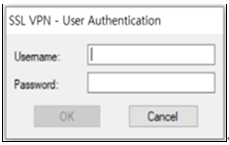
forward_pass를 이용하여 암호 입력창(Password:)에 암호와 같이 일회용 인증키를 입력할 경우, 암호를 먼저 입력하고 공백 없이 이어서 일회용 인증키를 입력하면 된다. 예를 들어 암호가 "baropam" 이고 일회용 인증키가 "123456" 이라면 "baropam123456"으로 입력하면 된다.
forward_pass를 이용하면 인증을 필요로 하는 대부분의 서비스에 2-factor 인증을 가능하게 할 수 있다.
3) cURL 인증
BaroPAM 모듈을 설정하기 위해서 ldap, saslauthd 등에 설정하는 방법은 다음과 같이 최 상단에 입력해 준다.
| [root] /usr/baropam > vi /etc/pam.d/ldap #%PAM-1.0 auth required pam_env.so auth required /usr/baropam/pam_baro_curl.so forward_pass secret=/usr/baropam/.baro_curl encrypt=no account required pam_unix.so [root] /usr/baropam > vi /etc/pam.d/saslauthd #%PAM-1.0 auth required /usr/baropam/pam_baro_curl.so forward_pass secret=/usr/baropam/.baro_curl encrypt=no auth substack password-auth account include password-auth |
참고로 secret 파라미터는 BaroPAM 환경설정 파일명, encrypt 파라미터는 BaroPAM 환경설정 파일을 암복호 플래그(yes or no) 설정한다.
filezilla처럼 "Interactive process"가 불가능한 프로그램들을 위해서는 PAM에서 forward_pass 옵션을 사용하여 암호 입력 시에 암호와 일회용 인증키를 같이 입력하도록 하는 수밖에 없다. 이 경우, openssh client나 Windows의 RDP(Remote Desktop Protocol), OpenLDAP, filezilla 등 모두 이렇게 입력을 하는 수밖에 없다.
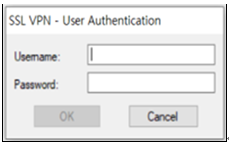
forward_pass를 이용하여 암호 입력창(Password:)에 암호와 같이 일회용 인증키를 입력할 경우, 암호를 먼저 입력하고 공백 없이 이어서 일회용 인증키를 입력하면 된다. 예를 들어 암호가 "baropam" 이고 일회용 인증키가 "123456" 이라면 "baropam123456"으로 입력하면 된다.
forward_pass를 이용하면 인증을 필요로 하는 대부분의 서비스에 2-factor 인증을 가능하게 할 수 있다.
4) BaroPAM 전용 허용 정책 설정
SELinux(Security-Enhanced Linux)는 리눅스 시스템의 보안을 강화하기 위해 강제 접근 제어(MAC, Mandatory Access Control) 방식을 구현한 커널 보안 모듈이다.
쉽게 비유하자면, 기존 리눅스 권한이 "권한을 가진 사용자은 모든 계정에 들어갈 수 있다"는 방식이라면, SELinux는 "권한이 있어도 허가된 특정 계정의 특정 모듈(또는 파일)만 건드릴 수 있다"라고 제한하는 '철저한 감시관' 역할을 한다.
① 주요 역할 및 특징
첫번째, 강제 접근 제어 (MAC) 구현
기존의 전통적인 리눅스 권한 방식(DAC: Discretionary Access Control)은 파일 소유자가 권한(777 등)을 마음대로 줄 수 있어, 해커가 root 권한을 탈취하면 시스템 전체가 장악되는 약점이 있었다.
SELinux 의 차별점으로 시스템 관리자가 설정한 보안 정책이 우선한다. 설령 777 권한의 파일이라도 정책상 허용되지 않은 프로세스는 접근할 수 없다.
두번째, 최소 권한 원칙 (Principle of Least Privilege)
프로세스가 동작하는 데 꼭 필요한 권한만 부여한다.
예) 웹 서버(Apache) 프로세스는 웹 콘텐츠 디렉터리(httpd_sys_content_t)만 읽을 수 있고, 사용자 홈 디렉터리나 시스템 설정 파일에는 접근할 수 없도록 차단한다.
세번째, 보안 컨텍스트(Context) 기반 관리
모든 파일, 프로세스, 네트워크 포트에 "라벨(Label)"을 붙여 관리한다.
형식) 사용자(User):역할(Role):타입(Type):레벨(Level)
이 중 "타입(Type)"이 가장 핵심이며, 프로세스 타입과 파일 타입이 일치해야만 접근을 허용한다. (이를 Type Enforcement 라고 부른다.)
② 필요한 이유
만약 해커가 웹 서버의 취약점을 이용해 시스템에 침투했다고 가정해 보면. SELinux 가 없을 때는 해커는 웹 서버(root 권한)를 통해 /etc/shadow(비밀번호 파일)를 훔치거나 인증 모듈을 변조할 수 있다.
SELinux 가 있을 때는 웹 서버 프로세스가 /etc/shadow 에 접근하려고 하면, SELinux 가 "웹 서버 타입은 시스템 비밀번호 타입을 읽을 권한이 없다"며 즉시 차단한다. root 권한이라도 예외는 없다.
③ 설정 방법
기존에는 BaroPAM 환경 설정 시 Redhat 계열에서 "/etc/sysconfig/selinux" 파일의 항목 중 "SELINUX=disabled" 시켰는데, 앞으로는 "/etc/sysconfig/selinux" 파일을 변경하지 않고, 다음과 같은 순서대로 진행해야 한다.
첫번째, /usr/baropam 디렉토리 권한 해제
| [root@baropam baropam]# chattr -i /usr/baropam |
두번째, SELinux 를 Permissive 모드로 변경 (로그 수집용)
| [root@baropam baropam]# setenforce 0 [root@baropam baropam]# getenforce Permissive |
세번째, BaroPAM 테스트(sshd, su, sudo, login, gdm-password 등)
환경 설정 모듈인 pam_baro_auth.so(기본), pam_baro_sql.so(웹 콘솔을 사용하는 경우)
네번째, audit2allow 도구 설치
| CentOS 8 / Rocky Linux / RHEL 8 이상: [root@baropam baropam]# dnf -y install policycoreutils-python-utils CentOS 7 이하: [root@baropam baropam]# yum -y install policycoreutils-python Ubuntu / Debian: Selinux 를 사용하는 경우 [root@baropam baropam]# apt -y install policycoreutils 설치 확인 [root@baropam baropam]# audit2allow --version audit2allow .1 |
다섯번째, 정책 파일 위치 확인
| [root@baropam baropam]# ls /etc/selinux/targeted/policy/ policy.33 |
여섯번째, 거부된 내역(denied)을 찾아 BaroPAM 전용 허용 정책 생성
| [root@baropam baropam]# grep "denied" /var/log/audit/audit.log | audit2allow -M baropam_policy -p /etc/selinux/targeted/policy/policy.33 ******************** 중대한 *********************** 이 정책 꾸러미를 활성화하려면 다음을 실행하세요: semodule -i baropam_policy.pp |
일곱번째, 생성된 정책 모듈 등록
| [root@baropam baropam]# semodule -i baropam_policy.pp |
여덟번째, /usr/baropam 디렉토리를 '인증 데이터 전용' 구역으로 선언
| [root@baropam baropam]# semanage fcontext -a -t auth_cache_t "/usr/baropam(/.*)?" File context for /usr/baropam(/.*)? already defined, modifying instead |
아홉번째, 실제 파일들에 적용
| [root@baropam baropam]# restorecon -Rv /usr/baropam |
열번째, SELinux 를 Enforcing 모드로 변경
| [root@baropam baropam]# setenforce 1 [root@baropam baropam]# getenforce Enforcing |
열한번째, BaroPAM 테스트(sshd, su, sudo, login, gdm-password 등)
5) ACL(Access Control list) 설정
① PAM 인증(환경 설정 정보를 File에 설정)인 경우 BaroPAM 모듈 사용 시 2차 인증에서 제외할 계정에 대한 ACL에 제외해야 하는 경우 BaroPAM 환경 설정 시 설정한 디렉토리에 ACL 파일을 생성한 후 제외할 계정을 다음과 같이 입력한다. (.baro_acl에 대한 파일 접근권한을 444로 설정해야 한다.)
| [root] /usr/baropam > vi .baro_acl barokey baropam |
② PAM 인증(환경 설정 정보를 MariaDB에 설정)인 경우는 Mariadb의 ACL 설정 테이블을 사용해야 한다.
6) NTP(Network Time Protocol) 설정
BaroPAM은 시간 동기화 방식이므로 서버의 시간이 현재 시간과 다를 경우 일회용 인증키가 서로 일치하지 않아서 서버에 로그인을 못하는 경우가 발생할 수 있다.
최근에는 정보자산에 대한 시간 동기화(타임서버 시간 동기화)하는 방법으로 NTP(Network Time Protocol)을 이용하여 root 계정에서 시스템의 시각을 현재 시각으로 설정할 수 있다.
NTP를 사용하기 위해서는 기본적으로 NTP 패키지가 반드시 설치되어 있어야 한다. 설치 확인은 다음의 명령어를 실행하여 확인한다. 만약, 설치되어 있지 않으면 Redhat, CentOS 8 이하 버젼은 "yum install ntp" 그외는 "sudo apt-get install ntp" 명령어로 설치하면 된다.
| [root]# rpm -qa | grep ntp ntp-4.2.2p1-18.el5.centos chkfontpath-1.10.1-1.1 |
ntpd 서비스를 서버 부팅 시 시작프로그램에 등록 및 ntp 활성화 여부 확인은 다음과 같은 명령어로 확인할 수 있다.
| [root]# chkconfig ntpd on [root]# chkconfig --list | grep ntp ntpd 0:해제 1:해제 2:활성 3:활성 4:활성 5:활성 6:해제 |
chkconfig 이용하여 서버 부팅시 ntpd 데몬 활성화 여부 확인 3, 5 level에 off(해제) 가 되어 있으면 자동 활성화되지 않는다. 자동 활성화하기 위해서는 3, 5에 on(활성)으로 다음과 같은 명령어로 변경해야 한다.
| [root]# chkconfig --level 3 ntpd on [root]# chkconfig --level 5 ntpd on |
우리나라에서 운영되고 있는 NTP 서버는 다음과 같다.
| server kr.pool.ntp.org server time.bora.net |
우리나라에서 운영되고 있는 NTP 서버를 ntpd 데몬 설정을 위한 설정 파일인 "/etc/ntp.conf"에 다음과 같이 설정한다.
| [root]# vi /etc/ntp.conf # Use public servers from the pool.ntp.org project. # Please consider joining the pool (http://www.pool.ntp.org/join.html). #server 0.centos.pool.ntp.org #server 1.centos.pool.ntp.org #server 2.centos.pool.ntp.org #server 3.centos.pool.ntp.org server kr.pool.ntp.org iburst minpoll 7 maxpoll 10 server time.bora.net iburst minpoll 7 maxpoll 10 |
iburst 옵션은 일종의 옵션 설정으로써 동기화 하는데 걸리는 시간을 짧게 줄여주는 옵션임.
minpoll과 maxpoll 옵션은 NTP 설정에서 NTP 서버에 시간 정보를 요청하는 주기(Polling Interval)의 최소 및 최대 간격을 설정하는 옵션이다.
이 값들은 초 단위의 시간이 아니라, 2의 거듭제곱으로 계산되는 지수 값이다.
실제 폴링 간격(초) = 2설정 값
minpoll(최소 폴링 간격) 옵션은 NTP 클라이언트가 NTP 서버에 시간 정보를 요청하는 가장 짧은 최소 간격을 의미한다.
기본값은 일반적으로 6으로 설정되어 있다. 26 = 64초, 즉 64초마다 한 번씩 요청함을 의미다.
설정 범위는 일반적으로 3 (8초) 에서부터 설정 가능하며, 환경에 따라 허용 범위가 다를 수 있다.
maxpoll(최대 폴링 간격) 옵션은 NTP 클라이언트가 NTP 서버에 시간 정보를 요청하는 가장 긴 최대 간격을 의미한다.
기본값은 일반적으로 10으로 설정되어 있다. 210 = 1024초, 즉 1024초마다 한 번씩 요청함을 의미한다.
설정 범위는 일반적으로 17 (약 36.4시간) 까지 설정 가능하며, 환경에 따라 허용 범위가 다를 수 있다.
NTP는 시스템 클럭의 정확도가 높아지면 폴링 간격을 점차 늘려(maxpoll 값에 가까워지게) 네트워크 트래픽을 줄인다. 반대로 클럭의 오차가 커지거나 불안정해지면 폴링 간격을 줄여(minpoll 값에 가까워지게) 빠르게 동기화 상태를 회복하려고 한다. 이 두 값은 NTP 동기화의 유연성과 효율성을 결정하는 중요한 요소다.
ntpd 데몬 설정을 위한 설정이 끝나면 반드시 NTP 설정이 제대로 추가되었는지 확인한 후 NTP 데몬의 Restart 작업이 반드시 필요하다.
| [root]# /etc/init.d/ntpd restart ntpd를 종료 중: [ OK ] ntpd (을)를 시작 중: [ OK ] |
ntpd 시간 확인은 다음과 같은 명령어로 확인할 수 있다.
| [root]# ntpq -p remote refid st t when poll reach delay offset jitter ============================================================================== static.betaidc. 106.247.248.106 3 u 7 64 1 2.884 287.718 0.001 time.bora.net .INIT. 16 u - 64 0 0.000 0.000 0.000 183.110.225.61 .INIT. 16 u - 64 0 0.000 0.000 0.000 LOCAL(0) .LOCL. 10 l 4 64 1 0.000 0.000 0.001 |
* 표시된 ip 가 현재 시간을 가져오고 있는 ntp 서버임
NTP를 사용하기 위해서는 기본적으로 NTP 패키지가 반드시 설치되어 있어야 한다. 설치 확인은 다음의 명령어를 실행하여 확인한다. 만약, 설치되어 있지 않으면 Redhat, CentOS 8 이상 버젼은 "yum install chrony" 명령어로 설치하면 된다.
| [root@baropam ~]# rpm -qa | grep chrony chrony-3.5-1.el8.x86_64 |
우리나라에서 운영되고 있는 NTP 서버는 다음과 같다.
| server kr.pool.ntp.org server time.bora.net |
우리나라에서 운영되고 있는 NTP 서버를 ntpd 데몬 설정을 위한 설정 파일인 "/etc/chrony.conf"에 다음과 같이 설정한다.
| [root@baropam ~]# vi /etc/chrony.conf # Use public servers from the pool.ntp.org project. # Please consider joining the pool (http://www.pool.ntp.org/join.html). #pool 2.centos.pool.ntp.org iburst server kr.pool.ntp.org iburst minpoll 7 maxpoll 10 server time.bora.net iburst minpoll 7 maxpoll 10 # Record the rate at which the system clock gains/losses time. driftfile /var/lib/chrony/drift # Allow the system clock to be stepped in the first three updates # if its offset is larger than 1 second. makestep 1.0 3 # Enable kernel synchronization of the real-time clock (RTC). rtcsync # Enable hardware timestamping on all interfaces that support it. #hwtimestamp * # Increase the minimum number of selectable sources required to adjust # the system clock. #minsources 2 # Allow NTP client access from local network. allow 192.168.0.0/16 # Serve time even if not synchronized to a time source. #local stratum 10 # Specify file containing keys for NTP authentication. keyfile /etc/chrony.keys # Get TAI-UTC offset and leap seconds from the system tz database. leapsectz right/UTC # Specify directory for log files. logdir /var/log/chrony # Select which information is logged. #log measurements statistics tracking |
ntpd 데몬 설정을 위한 설정이 끝나면 반드시 NTP 설정이 제대로 추가되었는지 확인한 후 NTP 데몬의 Restart 작업이 반드시 필요하다. (chrony 서비스 시작 및 부팅시 구동 등록)
| [root@baropam ~]# sudo systemctl enable chronyd [root@baropam ~]# sudo systemctl restart chronyd |
ntpd 시간 확인은 다음과 같은 명령어로 확인할 수 있다.
시간을 받아오는 서버 리스트 / chrony.conf 파일에 등록한 server 리스트)
| [root@baropam ~]# chronyc sources -v 210 Number of sources = 2 MS Name/IP address Stratum Poll Reach LastRx Last sample =============================================================================== ^* ec2-54-180-134-81.ap-nor> 2 6 377 43 -349us[-1059us] +/- 24ms ^- time.bora.net 2 6 377 42 +1398us[+1398us] +/- 90ms |
시간을 받아 오는 서버 정보)
| [root@baropam ~]# chronyc tracking Reference ID : 36B48651 (ec2-54-180-134-81.ap-northeast-2.compute.amazonaw) Stratum : 3 Ref time (UTC) : Sun Mar 22 07:07:43 2020 System time : 0.000130027 seconds slow of NTP time Last offset : -0.000710122 seconds RMS offset : 0.000583203 seconds Frequency : 19.980 ppm fast Residual freq : +0.142 ppm Skew : 3.235 ppm Root delay : 0.013462566 seconds Root dispersion : 0.017946836 seconds Update interval : 65.0 seconds Leap status : Normal |
시간 상태 및 동기화 등 정보 확인)
| [root@baropam ~]# timedatectl status Local time: Sun 2020-03-22 16:08:45 KST Universal time: Sun 2020-03-22 07:08:45 UTC RTC time: Sun 2020-03-22 07:08:44 Time zone: Asia/Seoul (KST, +0900) System clock synchronized: yes NTP service: active RTC in local TZ: no |
4. OpenLDAP 연동 테스트
4.1 환경 설정
1) saslauthd 설정 (중계역할)
saslauthd가 내부 DB가 아닌 Rocky Linux 시스템의 PAM을 바라보게 설정한다.
| [root@baropam ~]# vi /etc/sysconfig/saslauthd # Directory in which to place saslauthd's listening socket, pid file, and so # on. This directory must already exist. SOCKETDIR=/run/saslauthd # Mechanism to use when checking passwords. Run "saslauthd -v" to get a list # of which mechanism your installation was compiled with the ablity to use. MECH=pam # Additional flags to pass to saslauthd on the command line. See saslauthd(8) # for the list of accepted flags. FLAGS= [root@baropam ~]# systemctl enable saslauthd Created symlink /etc/systemd/system/multi-user.target.wants/saslauthd.service → /usr/lib/systemd/system/saslauthd.service. [root@baropam ~]# vi /usr/lib/systemd/system/saslauthd.service [Unit] Description=SASL authentication daemon. [Service] Type=forking PIDFile=/run/saslauthd/saslauthd.pid EnvironmentFile=/etc/sysconfig/saslauthd ExecStart=/usr/sbin/saslauthd -m $SOCKETDIR -a $MECH $FLAGS RuntimeDirectory=saslauthd Restart=on-failure RestartSec=5s StartLimitIntervalSec=600 StartLimitBurst=5 [Install] WantedBy=multi-user.target [root@baropam ~]# systemctl daemon-reload [root@baropam ~]# systemctl restart saslauthd.service |
2) OpenLDAP (slapd) 설정 (Bypass/Proxy)
OpenLDAP이 요청을 받으면 직접 처리하지 않고 SASL로 던지도록 설정한다.
| [root@baropam ~]# vi /etc/sasl2/slapd.conf pwcheck_method: saslauthd mech_list: plain login [root@baropam ~]# systemctl restart slapd |
4.2 사용자 계정 생성
1) Linux 사용자 계정 생성
테스트할 로컬 계정을 다음과 같이 생성한다.
| [root@baropam ~]# useradd baropam [root@baropam ~]# passwd baropam Changing password for user raduser. New password: baropam Retype new password: baropam passwd: all authentication tokens updated successfully. |
2) OpenLDAP 사용자 계정 생성
baropam 사용자 DN 생성)
OpenLDAP 사용자의 비밀번호가 저장되는 대신 시스템 인증을 타도록(인증을 saslauthd에게 위임) userPassword 속성에 {SASL}username 형식을 사용해야 한다.
| [root@baropam ~]# vi add_baropam.ldif dn: uid=baropam,ou=HR,ou=departments,dc=example,dc=com objectClass: top objectClass: inetOrgPerson objectClass: posixAccount objectClass: shadowAccount sn: baropam cn: baropam uid: baropam uidNumber: 1000 gidNumber: 1000 homeDirectory: /home/baropam loginShell: /bin/bash gecos: BaroPAM User userPassword: {SASL}baropam shadowLastChange: 0 shadowMax: 99999 shadowWarning: 7 |
baropam 사용자 DN 적용)
| [root@baropam ~]# ldapadd -x -D "cn=admin,dc=example,dc=com" -W -f add_baropam.ldif Enter LDAP Password: baropam adding new entry "uid=baropam,ou=HR,ou=departments,dc=example,dc=com" |
HR부서에 속한 인원을 조회)
| [root@baropam ~]# ldapsearch -x -b "ou=HR,ou=departments,dc=example,dc=com" "(objectClass=person)" cn # extended LDIF # # LDAPv3 # base <ou=HR,ou=departments,dc=example,dc=com> with scope subtree # filter: (objectClass=person) # requesting: cn # # honggildong, HR, departments, example.com dn: uid=honggildong,ou=HR,ou=departments,dc=example,dc=com cn: nurit # search result search: 2 result: 0 Success # numResponses: 2 # numEntries: 1 |
4.3 연동 테스트
1) 서버 내부에서 연동 확인 (saslauthd <-> BaroPAM)
OpenLDAP 클라이언트를 쓰기 전에 testsaslauthd로 먼저 검증한다. testsaslauthd는 기본적으로 서비스 이름을 imap으로 가정하고 PAM에 인증을 요청하기 때문에 반드시 심볼릭 링크을 생성해야 한다.
| [root@baropam ~]# ln -s /etc/pam.d/saslauthd /etc/pam.d/imap [root@baropam ~]# testsaslauthd -u baropam -p baropam935018 0: OK "Success." |
성공 시: 0: OK "Success." 출력.
실패 시: 0: NO "authentication failed" 출력.
참고)
$ systemctl start saslauthd ->서비스 시작
$ systemctl stop saslauthd ->서비스 종료
$ systemctl restart saslauthd ->서비스 재시작
$ systemctl status saslauthd ->서비스 상태
2) User(PC)에서 원격 테스트 (PC <-> OpenLDAP <-> saslauthd <-> BaroPAM)
PC에서 ldapwhoami 등의 도구를 사용하여 SASL 인증을 시도한다.
| [root@baropam ~]# ldapwhoami -h localhost -D "uid=baropam,ou=HR,ou=departments,dc=example,dc=com" -x -w "baropam566419" dn:uid=baropam,ou=HR,ou=departments,dc=example,dc=com |
성공 시: dn: baropam,ou=HR,ou=departments,dc=example,dc=com 출력.
실패 시: Invalid credentials (49) 에러 발생.
참고) 오류 발생 시 /var/log/messages, /var/log/secure 로그를 확인하여 조치를 해야 한다.
5. About BaroPAM

Version 1.0 - Official Release - 2016.12.1
Copyright ⓒ Nurit corp. All rights reserved.
제 조 사 : 주식회사 누리아이티
등록번호 : 258-87-00901
대표이사 : 이종일
대표전화 : 02-2665-0119(영업문의/기술지원)
이 메 일 : mc529@nurit.co.kr
주 소 : 서울시 강서구 마곡중앙2로 15, 913호(마곡동, 마곡테크노타워2)
'▶ BaroSolution > 가이드' 카테고리의 다른 글
| 정보자산의 보안강화를 위하여 다계층 인증을 위한 BaroPAM 솔루션 설치 요약서(OpenLDAP) (0) | 2026.05.17 |
|---|---|
| BaroPAM integration Guide (OpenLDAP) (0) | 2026.05.10 |
| BaroPAM Solution Installation Summary (Tomcat console) (0) | 2024.07.26 |
| Cloudera Data Platform 환경에서 사용자 식별 및 인증을 위한 다계층 인증 솔루션인 BaroPAM 솔루션의 적용 가이드 (0) | 2024.06.08 |
| Mattermost의 보완 강화를 위하여 비밀번호를 다계층 인증 솔루션인 BaroPAM으로 대체 가이드 (0) | 2024.04.24 |