
Application guide of BaroPAM solution, a multi-layer authentication solution for user identification and authentication in OpenLDAP environment
Index
1. OpenLDAP authentication
1.1 Abstract
1.2 Key Features of OpenLDAP
1.3 Main components
1.4 Use cases
1.5 Data identification example
2. OpenLDAP Installation and Setup
2.1 Install OpenLDAP
2.2 OpenLDAP settings
3. BaroPAM installation and setup
3.1 Preparation before installing BaroPAM
3.2 Download BaroPAM installation module
3.3 Create BaroPAM configuration file
3.4 BaroPAM environment settings
4. OpenLDAP integration testing
4.1 Environment setting
4.2 Create user account
4.3 Integration testing
5. About BaroPAM
1. OpenLDAP authentication
1.1 Abstract
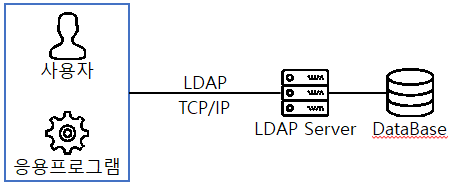
OpenLDAP is a representative open-source directory service software that implements the Lightweight Directory Access Protocol (LDAP).
While general relational databases (such as MySQL and Oracle) are optimized for complex relationships and frequent data modifications, directory services like OpenLDAP are specialized for hierarchically managing "information that is frequently read but rarely changes."
LDAP is a platform-independent protocol. Many common Linux distributions include OpenLDAP software for LDAP support. This software runs on BSD variants, AIX, Android, HP-UX, macOS, Solaris, Microsoft Windows (NT and derivatives, e.g., 2000, XP, Vista, Windows 7, etc.), and Z/OS.
1.2 Key Features of OpenLDAP
1) Hierarchical Structure (Tree Structure)
Data is stored in a tree format, allowing the organizational chart (Headquarters > Department > Team > Individual) to be accurately reflected.
2) High-Performance Search
Search tasks, such as verifying specific user permissions among tens of thousands of user records, are extremely fast.
3) Standard Protocol
Since it adheres to a standard LDAP protocol independent of any specific enterprise, it offers excellent compatibility with Linux, Windows, various network equipment, and cloud solutions.
4) Flexible Authentication Scheme
It provides broad support ranging from simple password authentication to encrypted authentication using SASL and TLS/SSL.
1.3 Main components
1) slapd (Standalone LDAP Daemon)
It is a core server program that receives client requests and processes data.
2) LDIF (LDAP Data Interchange Format)
It is a standard method for displaying data in text form, used for data backup or batch registration.
3) Schema
It is a set of rules that defines the format of data to be stored in a directory (e.g., names are strings, phone numbers are numbers, etc.).
1.4 Use cases
1) Integrated ID Management (Single Sign-On, SSO)
Accounts for all internal servers (Linux SSH), VPNs, internal bulletin boards, and email systems are integrated and managed through a single OpenLDAP. Users can log in to all systems using a single ID.
2) Access Control
Access is restricted so that only users belonging to specific groups can connect to specific servers or access specific folders.
3) Address Book Server
Contact and email information of employees within the company are managed and shared centrally.
1.5 Data identification example
Data within OpenLDAP has a unique address called a DN (Distinguished Name).
| uid=kim, ou=dev, dc=company, dc=com |
dc (Domain Component): Domain information (company.com)
ou (Organizational Unit): Organizational unit (Development Team)
uid (User ID): User ID (kim)
OpenLDAP is considered an essential infrastructure solution, particularly for enhancing security and user management in Linux server environments.
2. OpenLDAP Installation and Setup
2.1 Install OpenLDAP
Since openldap-servers does not exist in the default repository, add it to the repository.
| [root@baropam ~]# dnf config-manager --set-enabled plus [root@baropam ~]# dnf repolist Repository ID Repository name appstream Rocky Linux 9 - AppStream baseos Rocky Linux 9 - BaseOS extras Rocky Linux 9 - Extras plus Rocky Linux 9 - Plus |
First, install the OpenLDAP and SASL related packages.
| [root@baropam ~]# dnf -y install openldap-servers openldap-clients cyrus-sasl cyrus-sasl-plain |
When attempting to remove installed OpenLDAP è dnf -y erase openldap-servers openldap-clients cyrus-sasl cyrus-sasl-plain
2.2 OpenLDAP settings
1) OpenLDAP Execution and Initialization
Create and run the OpenLDAP service (slapd) for automatic startup.
| [root@baropam ~]# systemctl enable --now slapd Created symlink /etc/systemd/system/slapd.service → /usr/lib/systemd/system/slapd.service. Created symlink /etc/systemd/system/multi-user.target.wants/slapd.service → /usr/lib/systemd/system/slapd.service. [root@baropam ~]# systemctl start slapd |
To configure the OpenLDAP (slapd) daemon to restart automatically when a problem occurs, utilizing the features of systemd, Linux's service management tool, is the most standard and powerful method.
Since OpenLDAP itself does not have a separate option to self-restart in the event of a process crash, it must be configured to monitor and recover at the system level.
The most recommended method is to add a Restart option to the service unit file.
| [root@baropam ~]# vi /usr/lib/systemd/system/slapd.service [Unit] Description=OpenLDAP Server Daemon After=syslog.target network-online.target Documentation=man:slapd Documentation=man:slapd-config Documentation=man:slapd-mdb Documentation=file:///usr/share/doc/openldap-servers/guide.html [Service] Type=forking ExecStartPre=/usr/libexec/openldap/check-config.sh ExecStart=/usr/sbin/slapd -u ldap -h "ldap:/// ldaps:/// ldapi:///" Restart=on-failure RestartSec=5s StartLimitIntervalSec=600 StartLimitBurst=5 [Install] WantedBy=multi-user.target Alias=openldap.service |
The configured Restart option types and trigger conditions are as follows.
| Option | Description |
| no | Default, do not automatically restart the service. |
| always | Unconditional restart regardless of termination status (normal/abnormal) or signal. |
| on-success | Restart only when the service was cleanly terminated. (Exit code 0) |
| on-failure | Recommended, restart only in case of abnormal termination (non-zero exit code, process kill, timeout, etc.) |
| on-abnormal | Restart only when the process terminates abnormally (termination by signal, timeout, etc.). |
| on-abort | Restart only when the process is terminated by an uncaught signal. |
Important auxiliary options used with Restart are generally configured together with the following options to prevent infinite loops and ensure stability, rather than using the Restart option alone.
| Option | Description |
| RestartSec | Wait time before attempting a restart. (e.g., 5s) Setting it too short may increase the system load. |
| StartLimitIntervalSec | The time range for calculating the number of failures. (e.g., 600 seconds) |
| StartLimitBurst | Maximum number of restarts allowed within the set time range. (e.g., 5 times) |
Note: If a restart fails 5 or more times within 600 seconds, systemd determines that the service has a serious problem and stops attempting to restart it, leaving it in a failed state.
Apply changes)
| [root@baropam ~]# systemctl daemon-reload [root@baropam ~]# systemctl restart slapd.service |
Note)
$ systemctl start slapd ->Service start
$ systemctl stop slapd ->Service stop
$ systemctl restart slapd ->Service restart
$ systemctl status slapd ->Service status
2) Firewall allow
You must configure Firewalld to allow OpenLDAP packets.
| [root@baropam ~]# firewall-cmd --permanent --add-service={ldap,ldaps} success |
To apply the changes, run the following command to reload the firewall.
| [root@baropam ~]# firewall-cmd --reload success |
3) Set administrator password
Base Dn : cn=admin,dc=example,dc=com, can be managed using the administrator password.
Password creation)
| [root@baropam ~]# slappasswd New password: baropam Re-enter new password: baropam {SSHA}052QoM5oM14WYbi3WkzcMPLQ27fFsxFt ßCopy required |
Password DN creation)
| [root@baropam ~]# vi admin_pass.ldif dn: olcDatabase={2}mdb,cn=config changetype: modify replace: olcRootPW olcRootPW: {SSHA}052QoM5oM14WYbi3WkzcMPLQ27fFsxFt ßPaste the copied password |
Password DN applied)
| [root@baropam ~]# ldapadd -Y EXTERNAL -H ldapi:/// -f admin_pass.ldif SASL/EXTERNAL authentication started SASL username: gidNumber=0+uidNumber=0,cn=peercred,cn=external,cn=auth SASL SSF: 0 modifying entry "olcDatabase={2}mdb,cn=config" |
4) Set the default DN
Create basic DN)
| [root@baropam ~]# vi base_structure.ldif # base_structure.ldif dn: olcDatabase={2}mdb,cn=config changetype: modify replace: olcSuffix olcSuffix: dc=example,dc=com dn: olcDatabase={2}mdb,cn=config changetype: modify replace: olcRootDN olcRootDN: cn=admin,dc=example,dc=com |
Default DN applied)
| [root@baropam ~]# ldapadd -Y EXTERNAL -H ldapi:/// -f base_structure.ldif SASL/EXTERNAL authentication started SASL username: gidNumber=0+uidNumber=0,cn=peercred,cn=external,cn=auth SASL SSF: 0 modifying entry "olcDatabase={2}mdb,cn=config" modifying entry "olcDatabase={2}mdb,cn=config" |
5) Load default schema
| [root@baropam ~]# ldapadd -Y EXTERNAL -H ldapi:/// -f /etc/openldap/schema/cosine.ldif SASL/EXTERNAL authentication started SASL username: gidNumber=0+uidNumber=0,cn=peercred,cn=external,cn=auth SASL SSF: 0 adding new entry "cn=cosine,cn=schema,cn=config" [root@baropam ~]# ldapadd -Y EXTERNAL -H ldapi:/// -f /etc/openldap/schema/nis.ldif SASL/EXTERNAL authentication started SASL username: gidNumber=0+uidNumber=0,cn=peercred,cn=external,cn=auth SASL SSF: 0 adding new entry "cn=nis,cn=schema,cn=config" [root@baropam ~]# ldapadd -Y EXTERNAL -H ldapi:/// -f /etc/openldap/schema/inetorgperson.ldif SASL/EXTERNAL authentication started SASL username: gidNumber=0+uidNumber=0,cn=peercred,cn=external,cn=auth SASL SSF: 0 adding new entry "cn=inetorgperson,cn=schema,cn=config" |
6) Default organization settings
Create basic organization DN)
| [root@baropam ~]# vi initial_org.ldif # Definition of the organization's root DIT (Directory Information Tree) entry # dc=example,dc=com must be changed to match the default domain set during installation. dn: dc=example,dc=com objectClass: top objectClass: dcObject objectClass: organization o: My Company description: My Company's main LDAP directory # Definition of Organizational Units (OU) for users dn: ou=users,dc=example,dc=com objectClass: top objectClass: organizationalUnit ou: users description: All user accounts in My Company # Definition of Organizational Units (OU) for groups dn: ou=groups,dc=example,dc=com objectClass: top objectClass: organizationalUnit ou: groups description: All user groups in My Company # Definition of Organizational Units (OU) for departments dn: ou=departments,dc=example,dc=com objectClass: top objectClass: organizationalUnit ou: departments description: Departments within My Company # IT department OU definition (Located under department OU) dn: ou=IT,ou=departments,dc=example,dc=com objectClass: top objectClass: organizationalUnit ou: IT description: Information Technology Department # HR department OU definition (Located under department OU) dn: ou=HR,ou=departments,dc=example,dc=com objectClass: top objectClass: organizationalUnit ou: HR description: Human Resources Department |
Apply basic organization DN)
| [root@baropam ~]# ldapadd -x -W -D "cn=admin,dc=example,dc=com" -f initial_org.ldif Enter LDAP Password: baropam adding new entry "dc=example,dc=com" adding new entry "ou=users,dc=example,dc=com" adding new entry "ou=groups,dc=example,dc=com" adding new entry "ou=departments,dc=example,dc=com" adding new entry "ou=IT,ou=departments,dc=example,dc=com" adding new entry "ou=HR,ou=departments,dc=example,dc=com" |
7) Test
baropam user DN creation)
| [root@baropam ~]# vi add_nurit.ldif dn: uid=honggildong,ou=HR,ou=departments,dc=example,dc=com objectClass: top objectClass: person objectClass: organizationalPerson objectClass: inetOrgPerson cn: nurit sn: nuri givenName: it mail: nurit@example.com uid: nurit userPassword: {SSHA}052QoM5oM14WYbi3WkzcMPLQ27fFsxFt |
Apply baropam user DN)
| [root@baropam ~]# ldapadd -x -D "cn=admin,dc=example,dc=com" -W -f add_nurit.ldif Enter LDAP Password: baropam adding new entry "uid=honggildong,ou=HR,ou=departments,dc=example,dc=com" |
Look up personnel belonging to the HR department)
| [root@baropam ~]# ldapsearch -x -b "ou=HR,ou=departments,dc=example,dc=com" "(objectClass=person)" cn # extended LDIF # # LDAPv3 # base <ou=HR,ou=departments,dc=example,dc=com> with scope subtree # filter: (objectClass=person) # requesting: cn # # honggildong, HR, departments, example.com dn: uid=honggildong,ou=HR,ou=departments,dc=example,dc=com cn: nurit # search result search: 2 result: 0 Success # numResponses: 2 # numEntries: 1 |
3. BaroPAM installation and setup
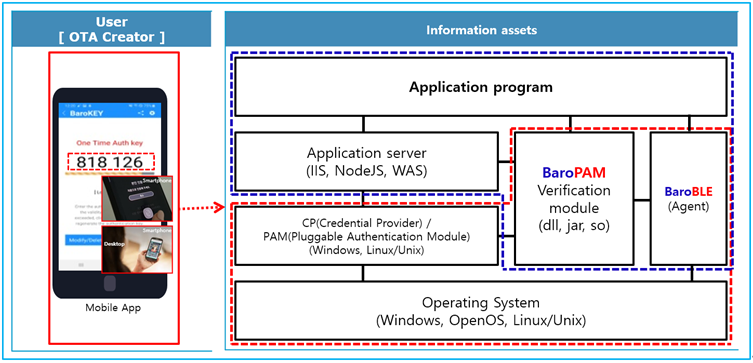
The BaroPAM solution is a zero trust security model based on the Pluggable Authentication Module (PAM) method that anyone can easily and immediately apply to various operating systems and applications that require secondary authentication (additional authentication) to enhance the security of information assets. It is a 3-step authentication solution with biometrics optimized for security.
3.1 Preparation before installing BaroPAM
To use the PAM module, the PAM package must be installed by default. To check the installation, run the following command. If it is not installed, use the command "dnf install pam" for Redhat series and "sudo apt-get install pam" for others.
| [root]# rpm -qa | grep pam pam_smb-1.1.7-7.2.1 pam_passwdqc-1.0.2-1.2.2 pam-0.99.6.2-14.el5_11 pam_krb5-2.2.14-22.el5 pam-devel-0.99.6.2-14.el5_11 pam_ccreds-3-5 pam_smb-1.1.7-7.2.1 pam_pkcs11-0.5.3-26.el5 pam-devel-0.99.6.2-14.el5_11 pam_passwdqc-1.0.2-1.2.2 pam-0.99.6.2-14.el5_11 pam_ccreds-3-5 pam_krb5-2.2.14-22.el5 pam_pkcs11-0.5.3-26.el5 |
To download and install the BaroPAM authentication module, connect with the root account and create a directory (/usr/baropam) to download and install the module as follows.
| [root]# mkdir /usr/baropam |
Grant permissions (read, write, execute) of the directory to download and install the BaroPAM module as follows.
| [root]# chmod 777 /usr/baropam |
3.2 Download BaroPAM installation module
After accessing the BaroPAM authentication module with the root account, move to the directory (/usr/baropam) to download and install the module, and download the module as follows.
| [root] /usr/baropam > wget http://nuriapp.com/download/libpam_baro_auth-x.x.tar |
When the download of the BaroPAM authentication module is complete, the tar file is decompressed as follows.
| [root] /usr/baropam > tar -xvf libpam_baro_auth-x.x.tar |
When the BaroPAM authentication module is unzipped, the following BaroPAM related modules are created in the baropam directory.
| [root] /usr/baropam > ls -al 합계 180 drwxrwxrwx 7 root root 4096 8월 23 09:59 . drwxr-xr-x 17 root root 4096 2월 10 2017 .. -r--r--r-- 1 root root 8 3월 24 2021 .baro_acl -r--r--r-- 1 root root 305 7월 2 14:41 .baro_auth -r--r--r-- 1 root root 290 6월 30 12:55 .baro_curl -r--r--r-- 1 root root 287 2월 28 12:19 .baro_sql -rwxr-xr-x 1 root root 69149 4월 6 19:12 baro_auth -rwxr-xr-x 1 root root 65072 6월 29 16:36 baro_curl -rwxr-xr-x 1 root root 57074 2월 28 12:18 baro_sql drwxr-xr-x 2 root root 4096 7월 20 2021 jilee -rwxr-xr-x 1 root root 152649 6월 9 08:19 pam_baro_auth.so -rwxr-xr-x 1 root root 116158 6월 30 12:54 pam_baro_curl.so -rwxr-xr-x 1 root root 170863 2월 28 12:18 pam_baro_sql.so -rw-r--r-- 1 root root 221 6월 27 15:59 setauth.sh -rw-r--r-- 1 root root 150 6월 29 16:29 setcurl.sh -rw-r--r-- 1 root root 180 2월 28 12:19 setsql.sh |
3.3 Create BaroPAM configuration file
1) PAM authentication (.baro_auth): Set environment setting information in File
The BaroPAM environment setting file must be created by executing the baro_auth program, and it must be located under /usr/baropam, the directory of the BaroPAM authentication module.
Format)
| baro_auth -r rate_limit -R rate_time -t cycle_time –k key_method –e encrypt_flag -A acl_type -a acl_filename -S secure_key -s filename |
The configuration options of the BaroPAM configuration file are as follows.
| Optino | Decumentation | Set value | Etc |
| -r | OTA key limited number of times (1~10) | 3 | |
| -R | OTA key time limit (15~600 sec) | 30 | |
| -t | OTA key authentication cycle (3~60 sec) | 30 | |
| -k | OTA key authentication method (app1, app256, app384, app512) | app512 | |
| -e | Encryption of configuration files (yes or no) | no | |
| -A | Choose whether to allow or deny 2nd authentication | deny | |
| -a | ACL file name for the account to allow or deny from 2nd authentication (file access permission is 444) | /usr/baropam/.baro_acl | |
| -S | Secure key (license key) provided by the vendor | jIqIcHbVqdpj7b4PzBpM2DiIeBvmHFV/ | |
| -s | File name including the directory in which to create the BaroPAM configuration file | /usr/baropam/.baro_auth |
Note) The filename of the -s option is the name of the file including the directory where the BaroPAM configuration file will be created (file access permission is 444). If the hostname of the set server does not match, BaroPAM may not operate normally.
Ex of use)
| [root] /usr/baropam > ./baro_auth -r 3 -R 30 -t 30 –k app512 –e no -A deny -a /usr/baropam/.baro_acl -S jIqIcHbVqdpj7b4PzBpM2DiIeBvmHFV/ -s /usr/baropam/.baro_auth |
If the BaroPAM environment setting file is set for each account, connect to the account and proceed with the work. (Not root)
| [root] /usr/baropam > ./baro_auth -r 3 -R 30 -t 30 –k app512 –e no -A deny -a ~/.baro_acl -S jIqIcHbVqdpj7b4PzBpM2DiIeBvmHFV/ -s ~/.baro_auth |
1) Your emergency one-time authentication keys are:
The emergency OTA key is a super authentication key that can be used to access the SSH server again in case you lose it when the OTA key generator, the BaroPAM app, is unavailable, so it is good to write it down somewhere.
2) Enter "y" for all the questions that follow.
Do you want me to update your "/usr/baropam/.baro_auth" file (y/n) y
Preventing man-in-the-middle attacks (y/n) y
The contents set in .baro_auth, the BaroPAM environment setting file, are as follows.
| [root] /usr/baropam > cat .baro_auth " AUTH_KEY " RATE_LIMIT 3 30 " KEY_METHOD app512 " CYCLE_TIME 30 " SECURE_KEY jIqIcHbVqdpj7b4PzBpM2DiIeBvmHFV/ " ACL_NAME /usr/baropam/.baro_acl " ACL_TYPE deny " DISALLOW_REUSE 33458936 19035576 15364353 54649370 84342192 |
The setting items of .baro_auth, a BaroPAM configuration file, are as follows.
| Item | Decumentation | Set value | Etc |
| AUTH_KEY | Authentication delimiter (fixed) | ||
| RATE_LIMIT | OTA key limit count (1~10), time limit (15~600 sec) | 3 30 | |
| KEY_METHOD | OTA key authentication method (app1, app256, app384, app512: app | app512 | |
| CYCLE_TIME | OTA key authentication cycle (3~60 sec) | 30 | |
| SECURE_KEY | Secure key (license key) provided by the vendor | jIqIcHbVqdpj7b4PzBpM2DiIeBvmHFV/ | |
| ACL_TYPE | Differentiate between allow and deny in 2nd authentication | deny | |
| ACL_NAME | ACL Filename for the account to be allowed or excluded from 2nd authentication (file access permission is 444) | /usr/baropam/.baro_acl | |
| DISALLOW_REUSE or ALLOW_REUSE |
To prevent a man-in-the-middle attack, if "DISALLOW_REUSE" is set, other users cannot log in during the authentication cycle of the OTA key. If allowed, set "ALLOW_REUSE". | DISALLOW_REUSE |
2) PAM authentication (.baro_sql): Set environment configuration information in MariaDB
Connection information for linking with Mariadb, where BaroPAM configuration information exists, must be created by running the baro_sql program, and must be located under /usr/baropam, the directory of the BaroPAM authentication module.
Format)
| baro_sql -H hostname –u username –p password –d dbname –P portno -r rate_limit -R rate_time -t cycle_time -k key_method -e encrypt_flag -A acl_type -a acl_filename -S secure_key -s filename |
The configuration options of the BaroPAM configuration file are as follows.
| Optino | Decumentation | Set value | Etc |
| -H | Hostname or IP address of the MariaDB server | nurit.co.kr | |
| -u | MariaDB username | nurit | |
| -p | Password for the MariaDB user | baropam | |
| -d | MariaDB name to connect to | baropamdb | |
| -p | Port number of the MariaDB server | 3308 | |
| -r | OTA key limited number of times (1~10) | 3 | |
| -R | OTA key time limit (15~600 sec) | 30 | |
| -t | OTA key authentication cycle (3~60 sec) | 30 | |
| -k | OTA key authentication method (app1, app256, app384, app512) | app512 | |
| -e | Encryption of configuration files (yes or no) | no | |
| -A | Choose whether to allow or deny 2nd authentication | deny | |
| -a | ACL file name for the account to allow or deny from 2nd authentication (file access permission is 444) | /usr/baropam/.baro_acl | |
| -S | Secure key (license key) provided by the vendor | jIqIcHbVqdpj7b4PzBpM2DiIeBvmHFV/ | |
| -s | File name including the directory in which to create the BaroPAM configuration file | /usr/baropam/.baro_sql |
Note) The filename of the -s option is the file name containing the directory where the BaroPAM configuration file will be created (file access permission is 444).
Ex of use)
| [root] /usr/baropam > ./baro_sql -H nurit.co.kr -e no -u nurit -p baropams -d baropamdb -P 3306 -r 3 -R 30 -t 30 –k app512 –e no -A deny -a /usr/baropam/.baro_acl -S jIqIcHbVqdpj7b4PzBpM2DiIeBvmHFV/ -s /usr/baropam/.baro_sql |
1) Your emergency one-time authentication keys are:
The emergency OTA key is a super authentication key that can be used to access the SSH server again in case you lose it when the OTA key generator, the BaroPAM app, is unavailable, so it is good to write it down somewhere.
2) Enter "y" for all the questions that follow.
Do you want me to update your "/usr/baropam/.baro_sql" file (y/n) y
Preventing man-in-the-middle attacks (y/n) y
The contents set in .baro_sql, the BaroPAM environment setting file, are as follows.
| [root] /usr/baropam > cat .baro_sql " AUTH_KEY " HOSTNAME nurit.co.kr " USERNAME nurit " PASSWORD baropams " DBNAME baropamdb " PORTNO 3306 " RATE_LIMIT 3 30 " KEY_METHOD app512 " CYCLE_TIME 30 " SECURE_KEY jIqIcHbVqdpj7b4PzBpM2DiIeBvmHFV/ " ACL_NAME /usr/baropam/.baro_acl " ACL_TYPE deny " DISALLOW_REUSE 33458936 19035576 15364353 54649370 84342192 |
The setting items of .baro_sql, a BaroPAM configuration file, are as follows.
| Item | Decumentation | Set value | Etc |
| AUTH_KEY | Authentication delimiter (fixed) | ||
| HOSTNAME | Hostname or IP address of the MariaDB server | nurit.co.kr | |
| USERNAME | MariaDB username | nurit | |
| PASSWORD | Password for the MariaDB user | baropam | |
| DBNAME | MariaDB name to connect to | baropamdb | |
| PORTNO | Port number of the MariaDB server | 3308 | |
| RATE_LIMIT | OTA key limit count (1~10), time limit (15~600 sec) | 3 30 | |
| KEY_METHOD | OTA key authentication method (app1, app256, app384, app512: app) | app512 | |
| CYCLE_TIME | OTA key authentication cycle (3~60 sec) | 30 | |
| SECURE_KEY | Secure key (license key) provided by the vendor | jIqIcHbVqdpj7b4PzBpM2DiIeBvmHFV/ | |
| ACL_TYPE | Differentiate between allow and deny in 2nd authentication | deny | |
| ACL_NAME | ACL Filename for the account to be allowed or excluded from 2nd authentication (file access permission is 444) | /usr/baropam/.baro_acl | |
| DISALLOW_REUSE or ALLOW_REUSE |
To prevent a man-in-the-middle attack, if "DISALLOW_REUSE" is set, other users cannot log in during the authentication cycle of the OTA key. If allowed, set "ALLOW_REUSE". | DISALLOW_REUSE |
Note) If connection is impossible due to a MariaDB issue, the configuration information set on the server will be applied.
3) cURL authentication (.baro_curl)
The name curl stands for "client URL" and was first released in 1997. That is, the client requests data from the server as a script. BaroPAM requests authentication by calling the http/https authentication site with curl.
The BaroPAM environment setting file must be created by executing the baro_curl program, and it must be located under /usr/baropam, the directory of the BaroPAM authentication module.
Format)
| baro_curl -r rate_limit -R rate_time -t cycle_time –k key_method –e encrypt_flag -H hostname –u auth_url -s filename |
The configuration options of the BaroPAM configuration file are as follows.
| Option | Decumentation | Set value | Etc |
| -r | OTA key limited number of times (1~10) | 3 | |
| -R | OTA key time limit (15~600 sec) | 30 | |
| -t | OTA key authentication cycle (3~60 sec) | 30 | |
| -k | OTA key authentication method (app1, app256, app384, app512: app) | app512 | |
| -e | Encryption of configuration files (yes or no) | no | |
| -H | Server's hostname (uname -n) | nurit.co.kr | |
| -u | The URL to be called includes parameters such as host name (hostname), user account (username), authentication cycle (cycle_time), and OTA key (auth_key) | http://1.23.456.789/baropam/web/result_curl.jsp | |
| -s | File name including the directory in which to create the BaroPAM configuration file | /usr/baropam/.baro_curl |
Note) The filename of the -s option is the name of the file including the directory where the BaroPAM configuration file will be created (file access permission is 444). If the hostname of the set server does not match, BaroPAM may not operate normally. If the hostname is changed, it must be reflected in the relevant item of the environment setting.
Ex of use)
| [root] /usr/baropam > ./baro_curl -r 3 -R 30 -t 30 –k app512 –e no -H nurit.co.kr -u http://1.23.456.789/baropam/web/result_curl.jsp -s /usr/baropam/.baro_curl |
1) Enter "y" for all the questions that follow.
Do you want me to update your "/usr/baropam/.baro_curl" file (y/n) y
Preventing man-in-the-middle attacks (y/n) y
The contents set in .baro_curl, a BaroPAM environment setting file, are as follows.
| [root] /usr/baropam > cat .baro_curl " AUTH_KEY " RATE_LIMIT 3 30 " AUTH_URL http://1.23.456.789/baropam/web/result_curl.jsp " KEY_METHOD app512 " CYCLE_TIME 30 " HOSTNAME baropam " DISALLOW_REUSE |
The setting items of .baro_curl, a BaroPAM configuration file, are as follows.
| Item | Documentation | Set value | Etc |
| AUTH_KEY | Authentication delimiter (fixed) | ||
| RATE_LIMIT | OTA key limit count (1~10), time limit (15~600 sec) | 3 30 | |
| AUTH_URL | The URL to be called includes parameters such as host name (hostname), user account (username), authentication cycle (cycle_time), and OTA key (auth_key) | http://1.23.456.789/baropam/web/result_curl.jsp | |
| KEY_METHOD | OTA key authentication method (app1, app256, app384, app512: app) | app512 | |
| CYCLE_TIME | OTA key authentication cycle (3~60 sec) | 30 | |
| HOSTNAME | Server's hostname (uname -n) | nurit.co.kr | |
| DISALLOW_REUSE or ALLOW_REUSE |
To prevent a man-in-the-middle attack, if "DISALLOW_REUSE" is set, other users cannot log in during the authentication cycle of the OTA key. If allowed, set "ALLOW_REUSE". | DISALLOW_REUSE |
3.4 BaroPAM environment settings
1) PAM authentication: Set environment setting information in File
To configure the BaroPAM module, enter it at the top as follows to configure ldap, saslauthd files.
| [root] /usr/baropam > vi /etc/pam.d/ldap #%PAM-1.0 auth required pam_env.so auth required /usr/baropam/pam_baro_auth.so forward_pass secret=/usr/baropam/.baro_auth encrypt=no account required pam_unix.so [root] /usr/baropam > vi /etc/pam.d/saslauthd #%PAM-1.0 auth required /usr/baropam/pam_baro_auth.so forward_pass secret=/usr/baropam/.baro_auth encrypt=no auth substack password-auth account include password-auth |
For reference, the secret parameter sets the name of the BaroPAM configuration file, and the encrypt parameter sets the encryption/decryption flag (yes or no) of the BaroPAM configuration file.
If the BaroPAM environment setting file is set for each account, the way to set the ldap, saslauthd file to set the BaroPAM module is entered at the top as follows.
| [root] /usr/baropam > vi /etc/pam.d/ldap #%PAM-1.0 auth required pam_env.so auth required /usr/baropam/pam_baro_auth.so forward_pass secret=${HOME}/.baro_auth encrypt=no account required pam_unix.so [root] /usr/baropam > vi /etc/pam.d/saslauthd #%PAM-1.0 auth required /usr/baropam/pam_baro_auth.so forward_pass secret=${HOME}/.baro_auth encrypt=no auth substack password-auth account include password-auth |
If you want to set different BaroPAM environment configuration files for each account in a specific directory instead of setting BaroPAM environment configuration files for each account, enter the following at the top to configure the BaroPAM module in the sshd file.
| [root] /usr/baropam > vi /etc/pam.d/ldap #%PAM-1.0 auth required pam_env.so auth required /usr/baropam/pam_baro_auth.so forward_pass secret=/usr/baropam/openldap/.${USER}_auth encrypt=no account required pam_unix.so [root] /usr/baropam > vi /etc/pam.d/saslauthd #%PAM-1.0 auth required /usr/baropam/pam_baro_auth.so forward_pass secret=/usr/baropam/openldap/.${USER}_auth encrypt=no auth substack password-auth account include password-auth |
For programs like filezilla that cannot perform "Interactive process", the only way is to use the forward_pass option in PAM to enter the OTA key when entering the password. In this case, the openssh client, RDP (Remote Desktop Protocol) of Windows, Radius, filezilla, etc. all have no choice but to input like this.

When entering the OTA key like a password in the password input window (Password:) using forward_pass, enter the password first and then enter the OTA key without spaces. For example, if the password is "baropam" and the OTA key is "123456", enter "baropam123456".
Using forward_pass, you can enable 2nd authentication for most services that require authentication.
2) PAM authentication: Set environment configuration information in MariaDB
To configure the BaroPAM module, enter it at the top as follows to configure ldap, saslauthd files.
| [root] /usr/baropam > vi /etc/pam.d/ldap #%PAM-1.0 auth required pam_env.so auth required /usr/baropam/pam_baro_sql.so forward_pass secret=/usr/baropam/.baro_sql encrypt=no auth=openldap account required pam_unix.so [root] /usr/baropam > vi /etc/pam.d/saslauthd #%PAM-1.0 auth required /usr/baropam/pam_baro_sql.so forward_pass secret=/usr/baropam/.baro_sql encrypt=no auth=openldap auth substack password-auth account include password-auth |
For reference, the secret parameter sets the name of the BaroPAM configuration file, and the encrypt parameter sets the encryption/decryption flag (yes or no) of the BaroPAM configuration file.
For programs like filezilla that cannot perform "Interactive process", the only way is to use the forward_pass option in PAM to enter the OTA key when entering the password. In this case, the openssh client, RDP (Remote Desktop Protocol) of Windows, Radius, filezilla, etc. all have no choice but to input like this.
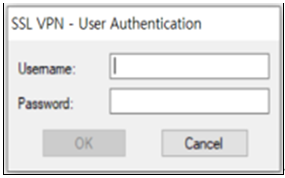
When entering the OTA key like a password in the password input window (Password:) using forward_pass, enter the password first and then enter the OTA key without spaces. For example, if the password is "baropam" and the OTA key is "123456", enter "baropam123456".
Using forward_pass, you can enable 2nd authentication for most services that require authentication.
3) cURL authentication
To configure the BaroPAM module, enter it at the top as follows to configure ldap, saslauthd files.
| [root] /usr/baropam > vi /etc/pam.d/ldap #%PAM-1.0 auth required pam_env.so auth required /usr/baropam/pam_baro_curl.so forward_pass secret=/usr/baropam/.baro_curl encrypt=no account required pam_unix.so [root] /usr/baropam > vi /etc/pam.d/saslauthd #%PAM-1.0 auth required /usr/baropam/pam_baro_curl.so forward_pass secret=/usr/baropam/.baro_curl encrypt=no auth substack password-auth account include password-auth |
For reference, the secret parameter sets the name of the BaroPAM configuration file, and the encrypt parameter sets the encryption/decryption flag (yes or no) of the BaroPAM configuration file.
For programs like filezilla, which cannot perform "Interactive process", the only way is to use the forward_pass option in PAM to enter the password and OTA key together when entering the password. In this case, the openssh client, RDP (Remote Desktop Protocol) of Windows, Radius, filezilla, etc. all have no choice but to input like this.
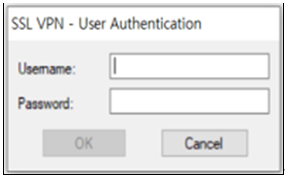
When entering the OTA key like a password in the password input window (Password:) using forward_pass, enter the password first and then enter the OTA key without spaces. For example, if the password is "baropam" and the OTA key is "123456", enter "baropam123456".
Using forward_pass, you can enable 2nd authentication for most services that require authentication.
4) BaroPAM exclusive allow policy settings
SELinux (Security-Enhanced Linux) is a kernel security module that implements MAC(Mandatory Access Control) to enhance the security of Linux systems.
To use a simple analogy, if traditional Linux permissions operate on the principle that "users with permissions can access all accounts," SELinux acts as a "strict overseer" that restricts access to only specific modules (or files) belonging to specific authorized accounts, even if one has the necessary permissions.
① Key Roles and Features
First, implementation of MAC(Mandatory Access Control)
The existing traditional Linux DAC(Discretionary Access Control) had a weakness in that file owners could arbitrarily grant permissions (such as 777), allowing the entire system to be taken over if a hacker seized root privileges.
A distinguishing feature of SELinux is that security policies set by the system administrator take precedence. Even if a file has 777 permissions, processes not allowed by the policy cannot access it.
Second, Principle of Least Privilege
Grant only the permissions absolutely necessary for the process to operate.
Ex) The web server (Apache) process can only read the web content directory (httpd_sys_content_t) and is blocked from accessing user home directories or system configuration files.
Third, security context-based management
Manage all files, processes, and network ports by attaching "labels".
Format) User:Role:Type:Level
Among these, "Type" is the most critical element, and access is allowed only if the process type and file type match. (This is called Type Enforcement)
② Why you need it
Let's assume a hacker infiltrates the system by exploiting a vulnerability in the web server. In the absence of SELinux, the hacker could steal /etc/shadow (password file) or tamper with the authentication module through the web server (root privileges).
When SELinux is present, if the web server process attempts to access /etc/shadow, SELinux immediately blocks it, stating, "The web server type does not have permission to read the system password type." There are no exceptions, even for root privileges.
③ How to set up
Previously, when configuring the BaroPAM environment on Red Hat-based systems, the entry "SELINUX=disabled" in the "/etc/sysconfig/selinux" file was changed; however, going forward, you should proceed in the following order without modifying the "/etc/sysconfig/selinux" file.
First, remove permissions for the /usr/baropam directory
| [root@baropam baropam]# chattr -i /usr/baropam |
Second, change SELinux to Permissive mode (for log collection)
| [root@baropam baropam]# setenforce 0 [root@baropam baropam]# getenforce Permissive |
Third, BaroPAM test (sshd, su, sudo, login, gdm-password, etc.)
Configuration modules pam_baro_auth.so (default), pam_baro_sql.so (if using the web console)
Fourth, install the audit2allow tool
| CentOS 8 / Rocky Linux / RHEL 8 or higher: [root@baropam baropam]# dnf -y install policycoreutils-python-utils CentOS 7 or lower: [root@baropam baropam]# yum -y install policycoreutils-python Ubuntu / Debian: If you are using Selinux [root@baropam baropam]# apt -y install policycoreutils Check installation [root@baropam baropam]# audit2allow --version audit2allow .1 |
Fifth, check the policy file location
| [root@baropam baropam]# ls /etc/selinux/targeted/policy/ policy.33 |
Sixth, find denied entries and create a BaroPAM-exclusive allow policy
| [root@baropam baropam]# grep "denied" /var/log/audit/audit.log | audit2allow -M baropam_policy -p /etc/selinux/targeted/policy/policy.33 ******************** serious *********************** To activate this policy package, do the following: semodule -i baropam_policy.pp |
Seventh, register the generated policy module
| [root@baropam baropam]# semodule -i baropam_policy.pp |
Eighth, declare the /usr/baropam directory as an 'authentication data only' zone
| [root@baropam baropam]# semanage fcontext -a -t auth_cache_t "/usr/baropam(/.*)?" File context for /usr/baropam(/.*)? already defined, modifying instead |
Ninth, apply to actual files
| [root@baropam baropam]# restorecon -Rv /usr/baropam |
Tenth, change SELinux to Enforcing mode
| [root@baropam baropam]# setenforce 1 [root@baropam baropam]# getenforce Enforcing |
Eleventh, BaroPAM test (sshd, su, sudo, login, gdm-password, etc.)
5) ACL(Access Control list) settings
① In the case of PAM authentication (Set environment setting information in File) When using the BaroPAM module, if it is necessary to exclude from the ACL for the account to be excluded from the 2nd authentication, create an ACL file in the directory set when setting the BaroPAM environment, and enter the account to be excluded as follows. (The file access permission for .baro_acl must be set to 444.)
| [root] /usr/baropam > vi .baro_acl barokey baropam |
② In case of PAM authentication (Set environment configuration information in MariaDB), Mariadb's ACL setting table must be used.
6) NTP(Network Time Protocol) settings
Since BaroPAM is a time synchronization method, if the server's time is different from the current time, login to the server may not be possible because the OTA keys do not match.
Recently, as a method of time synchronization (time server time synchronization) for information assets, the system time can be set to the current time in the root account using NTP (Network Time Protocol).
To use NTP, the NTP package must be installed by default. To check the installation, run the following command. If it is not installed, use the command "yum install ntp" for Redhat, CentOS 8 or lower, and "sudo apt-get install ntp" for others.
| [root]# rpm -qa | grep ntp ntp-4.2.2p1-18.el5.centos chkfontpath-1.10.1-1.1 |
The following command can be used to register the ntpd service in the startup program when booting the server and to check whether ntp is activated.
| [root]# chkconfig ntpd on [root]# chkconfig --list | grep ntp ntpd 0:off 1:off 2:on 3:on 4:on 5:on 6:off |
Check whether the ntpd daemon is active when booting the server using chkconfig. If it is off in level 3 and 5, it is not activated automatically. To activate automatically, you must change 3 and 5 to on (active) with the following command.
| [root]# chkconfig --level 3 ntpd on [root]# chkconfig --level 5 ntpd on |
NTP servers operating in Korea are as follows.
| server kr.pool.ntp.org server time.bora.net |
Set the NTP server operating in Korea in "/etc/ntp.conf", the configuration file for the ntpd daemon configuration, as follows.
| [root]# vi /etc/ntp.conf # Use public servers from the pool.ntp.org project. # Please consider joining the pool (http://www.pool.ntp.org/join.html). #server 0.centos.pool.ntp.org #server 1.centos.pool.ntp.org #server 2.centos.pool.ntp.org #server 3.centos.pool.ntp.org server kr.pool.ntp.org iburst minpoll 7 maxpoll 10 server time.bora.net iburst minpoll 7 maxpoll 10 |
The iburst option is a kind of option setting that shortens the time required for synchronization.
The minpoll and maxpoll options are options that set the minimum and maximum intervals for requesting time information from the NTP server (Polling Interval) in the NTP settings
These values are not times in seconds, but exponential values calculated as powers of 2.
Actual polling interval (seconds) = 2set value
The minpoll (minimum polling interval) option specifies the shortest minimum interval at which an NTP client requests time information from an NTP server.
The default is usually set to 6, which means 26 = 64 seconds, meaning one request every 64 seconds.
The setting range is generally set from 3 (8 seconds), and the allowable range may vary depending on the environment.
The maxpoll (maximum polling interval) option specifies the longest maximum interval at which an NTP client requests time information from an NTP server.
The default is usually set to 10. 210 = 1024 seconds, meaning one request every 1024 seconds.
The setting range is generally set to 17 (approximately 36.4 hours), but the allowable range may vary depending on the environment.
As the system clock accuracy improves, NTP gradually increases the polling interval (toward the maxpoll value) to reduce network traffic. Conversely, as the clock error increases or becomes unstable, NTP shortens the polling interval (toward the minpoll value) to quickly restore synchronization. These two values are crucial factors in determining the flexibility and efficiency of NTP synchronization.
After the setup for the ntpd daemon setup is complete, it is absolutely necessary to restart the NTP daemon after confirming that the NTP setup has been properly added.
| [root]# /etc/init.d/ntpd restart Stopping ntpd: [ OK ] Starting ntpd: [ OK ] |
You can check the ntpd time with the following command.
| [root]# ntpq -p remote refid st t when poll reach delay offset jitter ============================================================================== *121.174.142.82 220.73.142.66 3 u 791 1024 377 9.333 -4.250 0.428 +time.bora.net 58.224.35.2 3 u 654 1024 367 2.926 -27.295 24.481 183.110.225.61 .INIT. 16 u - 1024 0 0.000 0.000 0.000 LOCAL(0) .LOCL. 10 l 39 64 377 0.000 0.000 0.001 |
* The displayed ip is the ntp server getting the current time
To use NTP, the NTP package must be installed by default. To check the installation, run the following command. If it is not installed, use the "dnf install chrony" command to install Redhat, CentOS 8 or later versions.
| [root@baropam ~]# rpm -qa | grep chrony chrony-3.5-1.el8.x86_64 |
NTP servers operating in Korea are as follows.
| server kr.pool.ntp.org server time.bora.net |
Set the NTP server operating in Korea in "/etc/chrony.conf", the configuration file for the ntpd daemon configuration, as follows.
| [root@baropam ~]# vi /etc/chrony.conf # Use public servers from the pool.ntp.org project. # Please consider joining the pool (http://www.pool.ntp.org/join.html). #pool 2.centos.pool.ntp.org iburst server kr.pool.ntp.org iburst minpoll 7 maxpoll 10 server time.bora.net iburst minpoll 7 maxpoll 10 # Record the rate at which the system clock gains/losses time. driftfile /var/lib/chrony/drift # Allow the system clock to be stepped in the first three updates # if its offset is larger than 1 second. makestep 1.0 3 # Enable kernel synchronization of the real-time clock (RTC). rtcsync # Enable hardware timestamping on all interfaces that support it. #hwtimestamp * # Increase the minimum number of selectable sources required to adjust # the system clock. #minsources 2 # Allow NTP client access from local network. allow 192.168.0.0/16 # Serve time even if not synchronized to a time source. #local stratum 10 # Specify file containing keys for NTP authentication. keyfile /etc/chrony.keys # Get TAI-UTC offset and leap seconds from the system tz database. leapsectz right/UTC # Specify directory for log files. logdir /var/log/chrony # Select which information is logged. #log measurements statistics tracking |
After the setup for the ntpd daemon setup is complete, it is absolutely necessary to restart the NTP daemon after confirming that the NTP setup has been properly added. (Starting chrony service and registering drive when booting)
| [root@baropam ~]# sudo systemctl enable chronyd [root@baropam ~]# sudo systemctl restart chronyd |
You can check the ntpd time with the following command.
List of servers receiving time / list of servers registered in chrony.conf file)
| [root@baropam ~]# chronyc sources -v 210 Number of sources = 2 MS Name/IP address Stratum Poll Reach LastRx Last sample =============================================================================== ^* ec2-54-180-134-81.ap-nor> 2 6 377 43 -349us[-1059us] +/- 24ms ^- time.bora.net 2 6 377 42 +1398us[+1398us] +/- 90ms |
Server information receiving time)
| [root@baropam ~]# chronyc tracking Reference ID : 36B48651 (ec2-54-180-134-81.ap-northeast-2.compute.amazonaw) Stratum : 3 Ref time (UTC) : Sun Mar 22 07:07:43 2020 System time : 0.000130027 seconds slow of NTP time Last offset : -0.000710122 seconds RMS offset : 0.000583203 seconds Frequency : 19.980 ppm fast Residual freq : +0.142 ppm Skew : 3.235 ppm Root delay : 0.013462566 seconds Root dispersion : 0.017946836 seconds Update interval : 65.0 seconds Leap status : Normal |
Check information such as time status and synchronization)
| [root@baropam ~]# timedatectl status Local time: Sun 2020-03-22 16:08:45 KST Universal time: Sun 2020-03-22 07:08:45 UTC RTC time: Sun 2020-03-22 07:08:44 Time zone: Asia/Seoul (KST, +0900) System clock synchronized: yes NTP service: active RTC in local TZ: no |
4. OpenLDAP integration testing
4.1 Environment setting
1) saslauthd configuration (relay role)
Configure saslauthd to look at the Rocky Linux system's PAM instead of the internal DB.
| [root@baropam ~]# vi /etc/sysconfig/saslauthd # Directory in which to place saslauthd's listening socket, pid file, and so # on. This directory must already exist. SOCKETDIR=/run/saslauthd # Mechanism to use when checking passwords. Run "saslauthd -v" to get a list # of which mechanism your installation was compiled with the ablity to use. MECH=pam # Additional flags to pass to saslauthd on the command line. See saslauthd(8) # for the list of accepted flags. FLAGS= [root@baropam ~]# systemctl enable saslauthd Created symlink /etc/systemd/system/multi-user.target.wants/saslauthd.service → /usr/lib/systemd/system/saslauthd.service. [root@baropam ~]# vi /usr/lib/systemd/system/saslauthd.service [Unit] Description=SASL authentication daemon. [Service] Type=forking PIDFile=/run/saslauthd/saslauthd.pid EnvironmentFile=/etc/sysconfig/saslauthd ExecStart=/usr/sbin/saslauthd -m $SOCKETDIR -a $MECH $FLAGS RuntimeDirectory=saslauthd Restart=on-failure RestartSec=5s StartLimitIntervalSec=600 StartLimitBurst=5 [Install] WantedBy=multi-user.target [root@baropam ~]# systemctl daemon-reload [root@baropam ~]# systemctl restart saslauthd.service |
2) OpenLDAP (slapd) Configuration (Bypass/Proxy)
Configure OpenLDAP so that when it receives a request, it does not process it directly but passes it to SASL.
| [root@baropam ~]# vi /etc/sasl2/slapd.conf pwcheck_method: saslauthd mech_list: plain login [root@baropam ~]# systemctl restart slapd |
4.2 Create user account
1) Create a Linux user account
Create a local account to test as follows.
| [root@baropam ~]# useradd baropam [root@baropam ~]# passwd baropam Changing password for user raduser. New password: baropam Retype new password: baropam passwd: all authentication tokens updated successfully. |
2) Create OpenLDAP user account
baropam user DN creation)
To ensure that OpenLDAP user passwords are authenticated by the system instead of being stored (delegating authentication to saslauthd), you must use the format {SASL}username for the userPassword property.
| [root@baropam ~]# vi add_baropam.ldif dn: uid=baropam,ou=HR,ou=departments,dc=example,dc=com objectClass: top objectClass: inetOrgPerson objectClass: posixAccount objectClass: shadowAccount sn: baropam cn: baropam uid: baropam uidNumber: 1000 gidNumber: 1000 homeDirectory: /home/baropam loginShell: /bin/bash gecos: BaroPAM User userPassword: {SASL}baropam shadowLastChange: 0 shadowMax: 99999 shadowWarning: 7 |
Apply baropam user DN)
| [root@baropam ~]# ldapadd -x -D "cn=admin,dc=example,dc=com" -W -f add_baropam.ldif Enter LDAP Password: baropam adding new entry "uid=baropam,ou=HR,ou=departments,dc=example,dc=com" |
Look up personnel belonging to the HR department)
| [root@baropam ~]# ldapsearch -x -b "ou=HR,ou=departments,dc=example,dc=com" "(objectClass=person)" cn # extended LDIF # # LDAPv3 # base <ou=HR,ou=departments,dc=example,dc=com> with scope subtree # filter: (objectClass=person) # requesting: cn # # honggildong, HR, departments, example.com dn: uid=honggildong,ou=HR,ou=departments,dc=example,dc=com cn: nurit # search result search: 2 result: 0 Success # numResponses: 2 # numEntries: 1 |
4.3 Integration testing
1) Verify integration within the server (saslauthd <-> BaroPAM)
Before using the OpenLDAP client, verify it first with testsaslauthd. Since testsaslauthd assumes the service name is an imap by default and requests authentication from PAM, you must create a symbolic link.
| [root@baropam ~]# ln -s /etc/pam.d/saslauthd /etc/pam.d/imap [root@baropam ~]# testsaslauthd -u baropam -p baropam935018 0: OK "Success." |
On success: 0: Prints OK "Success."
On failure: 0: Prints NO "authentication failed"
Note)
$ systemctl start saslauthd ->Service start
$ systemctl stop saslauthd ->Service stop
$ systemctl restart saslauthd ->Service restart
$ systemctl status saslauthd ->Service status
2) Remote test from User (PC) (PC <-> OpenLDAP <-> saslauthd <-> BaroPAM)
Attempt SASL authentication on a PC using tools such as ldapwhoami.
| [root@baropam ~]# ldapwhoami -h localhost -D "uid=baropam,ou=HR,ou=departments,dc=example,dc=com" -x -w "baropam566419" dn:uid=baropam,ou=HR,ou=departments,dc=example,dc=com |
On success: Prints dn: baropam,ou=HR,ou=departments,dc=example,dc=com
On failure: Invalid credentials (49) error occurred.
Note) If an error occurs, check the /var/log/messages and /var/log/secure logs to take action.
5. About BaroPAM

Version 1.0 - Official Release - 2016.12.1
Copyright ⓒ Nurit corp. All rights reserved.
Company: Nurit Co., Ltd.
Registration Number: 258-87-00901
CEO: Jongil Lee
Tel: +82-2-2665-0119(Technical support, sales inquiry)
email: mc529@nurit.co.kr
Address: #913, 15, Magokjungang 2-ro, Gangseo-gu, Seoul (Magok-dong, Magok Techno Tower 2)
'▶ BaroSolution > 가이드' 카테고리의 다른 글
| BaroPAM Solution Installation Summary (OpenLDAP) (0) | 2026.05.17 |
|---|---|
| 정보자산의 보안강화를 위하여 다계층 인증을 위한 BaroPAM 솔루션 설치 요약서(OpenLDAP) (0) | 2026.05.17 |
| OpenLDAP 환경에서 사용자 식별 및 인증을 위한 다계층 인증 솔루션인 BaroPAM 솔루션의 적용 가이드 (0) | 2026.05.10 |
| BaroPAM Solution Installation Summary (Tomcat console) (0) | 2024.07.26 |
| Cloudera Data Platform 환경에서 사용자 식별 및 인증을 위한 다계층 인증 솔루션인 BaroPAM 솔루션의 적용 가이드 (0) | 2024.06.08 |